
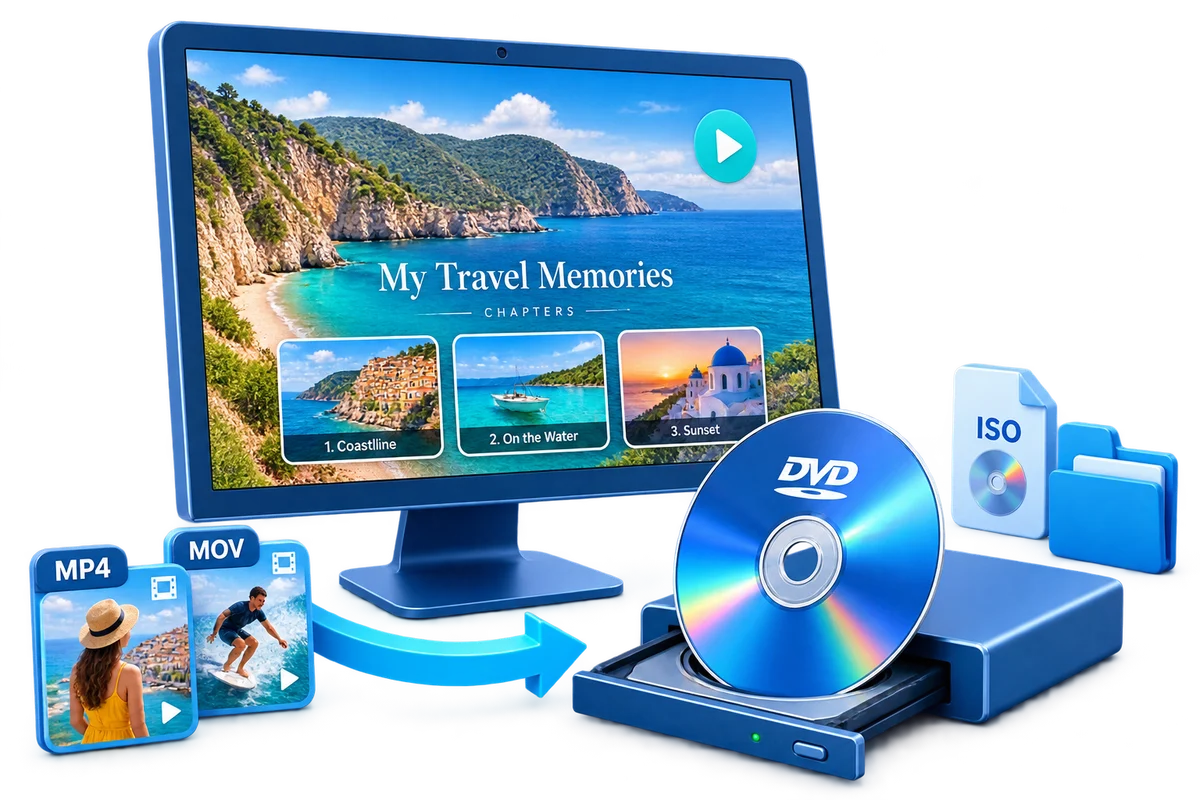
Choose the Output by How It Will Be Used
| Goal | Best choice | Why |
|---|---|---|
| Only need file backup | Windows data-disc tools | No authored menu; playback depends on file support |
| Need standalone DVD playback | DVD-authoring software | Creates DVD-Video structure and navigation |
| No optical writer attached | ISO or DVD-folder output | Prepare the project now and burn later |
| Need repeated copies | Verified ISO master | Reuse the same authored image for consistent discs |
Prepare Before Creating the DVD
Confirm DVD-Video output
Do not assume every disc-burning app authors playable video DVDs.
Look for menu preview
Navigation should be testable before media is consumed.
Check output choices
Disc, ISO, and DVD folder support make the workflow more flexible.
Verify source tools
Basic trim, rotate, subtitle, and text options reduce tool switching.
Windows DVD Maker Alternative for Windows 10 and 11: Step by Step
Define the playback goal
Decide whether the recipient needs a data disc or a standard DVD-Video disc.
Install and open Movie DVD Creator
Start a new project and select the intended destination.
Import and prepare videos
Arrange sources and make necessary corrections.
Author the menu and chapters
Use concise labels and predictable remote navigation.
Preview the entire disc
Check startup, every button, title order, and return behavior.
Create and test the output
Burn or save an ISO or folder, then verify on the actual playback device.
Features to Expect from a DVD Maker Alternative
Real DVD authoring
Converts source videos into DVD-Video rather than only storing files.
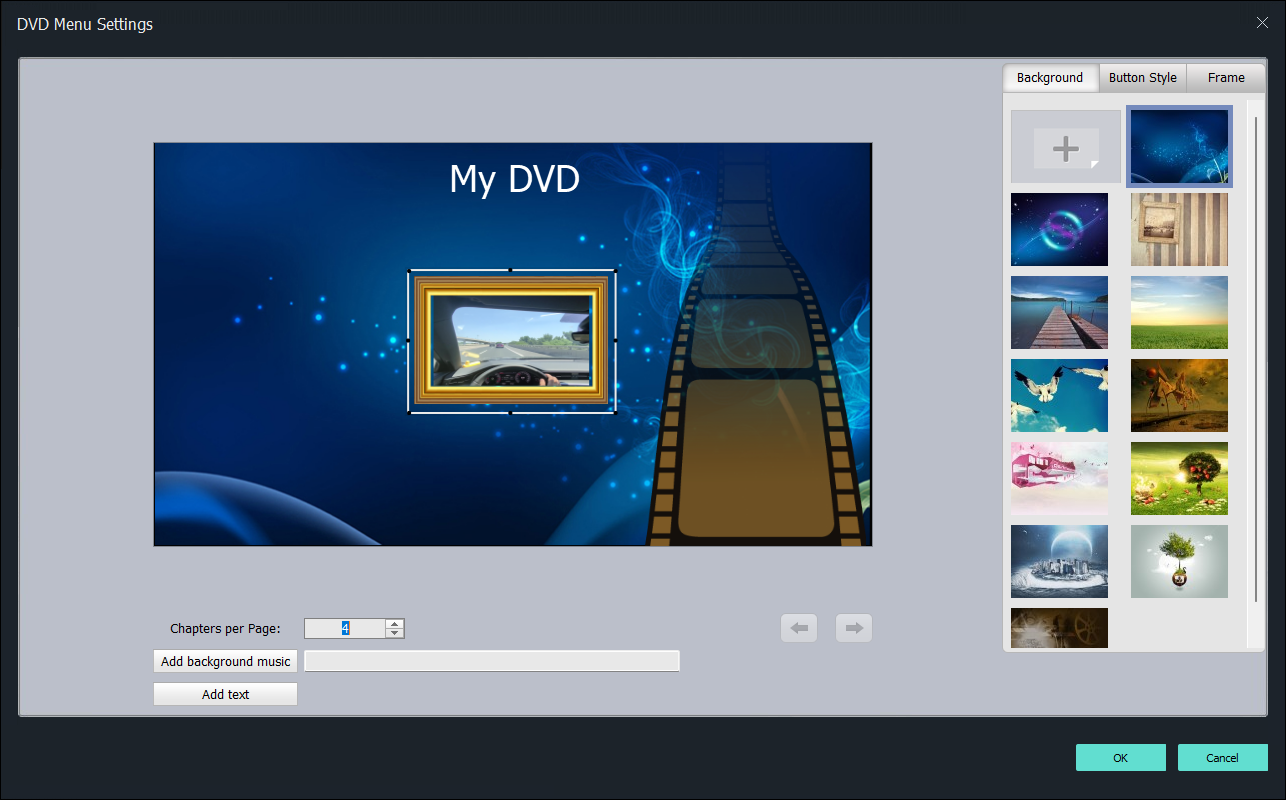
Menu and chapter control
Organizes multiple videos and long recordings for remote navigation.
Disc-image workflow
Creates an ISO master for review, transfer, and repeat burns.
Regional output choice
Supports PAL and NTSC for different playback environments.
Author the Complete Project with GiliSoft Movie DVD Creator
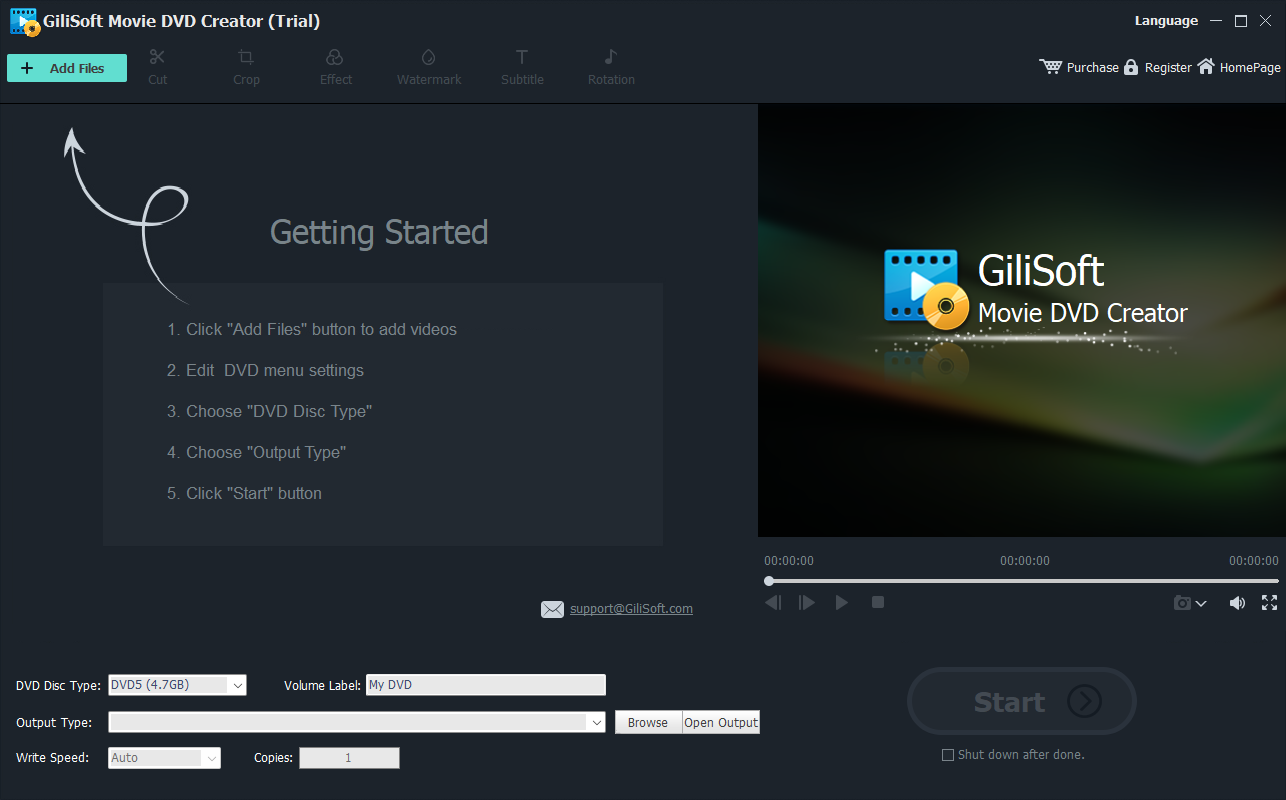
GiliSoft Movie DVD Creator keeps source preparation, titles, chapters, menu design, PAL or NTSC selection, preview, and disc, ISO, or DVD-folder output in one workflow. It is intended for creating DVD-Video, not merely copying loose video files to optical media.
Troubleshooting
- The software only copies files: verify that it explicitly creates DVD-Video.
- No menu appears: check project startup behavior and menu assignment.
- The writer is missing: create an ISO first and troubleshoot the optical drive separately.
- Playback works only on a PC: verify disc format, media compatibility, and PAL or NTSC.
- Quality is poor: reduce runtime per disc and keep original video masters separately.
Create Discs Only from Authorized Video
Use recordings you own or have permission to copy and distribute. DVD creation does not override copyright, privacy, licensing, or technical protection.
Frequently Asked Questions
Why is Windows DVD Maker missing?
The classic application is not included with current Windows versions.
Is a disc-burning app the same as a DVD maker?
No. Basic burning may create a data disc, while a DVD maker authors video structure and navigation.
What output formats should an alternative support?
Disc, ISO, and DVD folder cover immediate burning, reusable images, and accessible authored files.
Does GiliSoft Movie DVD Creator support menus?
Yes. It includes menu templates, customization, and chapter navigation.
Can I use an external USB writer?
Yes, when Windows recognizes it and it supports the chosen blank media.
Should I keep an ISO after burning?
For important projects, a verified ISO makes replacement copies easier.