
Choose the Right Workflow First
| Approach or project | Best fit | What to protect |
|---|---|---|
| Green screen | Most subjects without green clothing or props | Common and efficient for digital cameras |
| Blue screen | Subjects containing green or reflective green detail | Useful when blue is less present in the foreground |
| AI background removal | Footage without a prepared screen | Convenient for some shots but still needs edge review |
| Manual mask or crop | Static or limited problem area | Useful as cleanup, not a replacement for good source footage |
Prepare Before Editing
A short preparation pass prevents avoidable rework after timing, text, audio, or output choices have already been made.
Light the background evenly
Reduce hot spots, deep shadows, folds, and visible texture across the key color.
Move the subject forward
Distance reduces colored spill and separates the subject from background shadows.
Protect fine detail
Hair, transparent objects, motion blur, and reflective surfaces need careful testing.
How to Complete the Workflow on Windows
Follow the steps in order and delay decorative work until the structure and essential sound are stable.
Record a clean green or blue screen source
Use even exposure, keep the screen in focus enough to remain consistent, and avoid the key color on the subject.
Create a project and place the replacement background
Put the new image or video on the lower track and the keyed subject above it.
Apply chroma key and sample the background color
Select a representative area of the screen rather than a shadow, highlight, or contaminated edge.
Refine tolerance and edge controls
Remove the screen without eroding hair, clothing, transparent detail, or fast motion.
Correct spill, scale, light, and perspective
Match the subject to the replacement scene so color, size, direction, and softness feel intentional.
Preview motion and export a test
Inspect difficult frames at full size, including hair, hands, reflective areas, shadows, and compression.
Source Quality Determines Key Quality
Even background exposure
A narrow range of background color is easier to remove without damaging the subject.
Subject separation
Distance reduces shadows and reflected green or blue light on skin and clothing.
Controlled motion blur
Fast blurred edges contain mixed foreground and background color that is harder to isolate.
Full-resolution inspection
A clean small preview can still hide halos, holes, noise, and spill in the export.
Where Video Editor Pro Fits
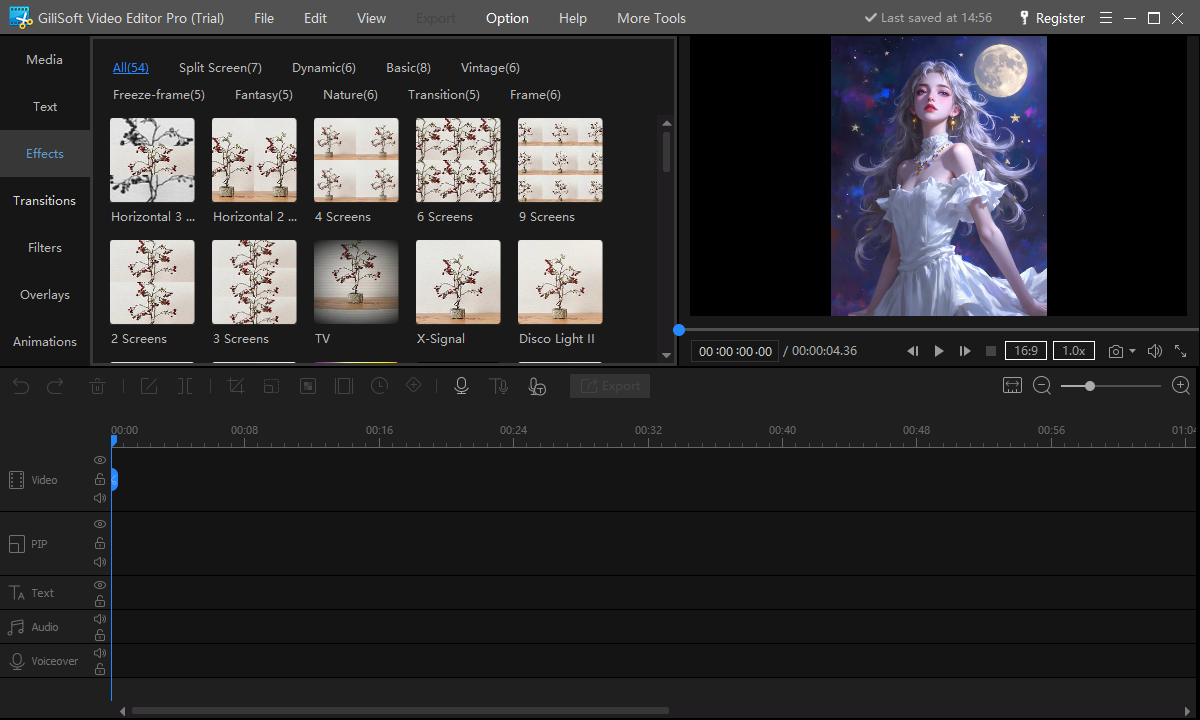
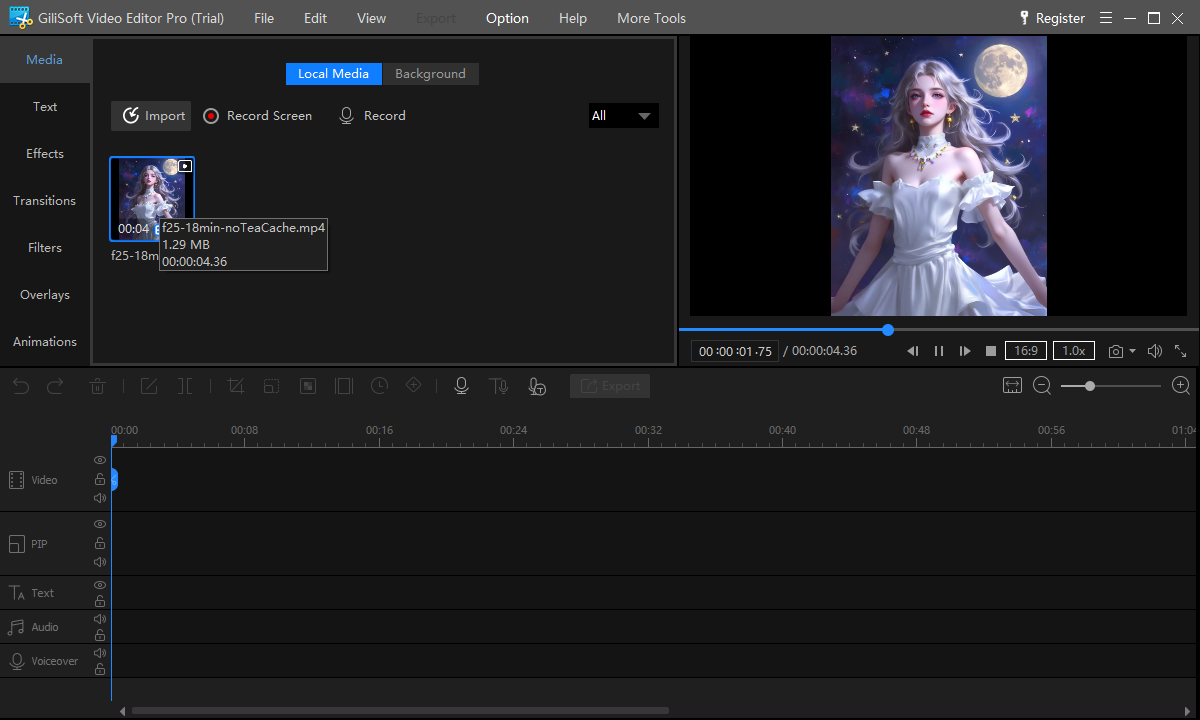
GiliSoft Video Editor Pro includes chroma key and AI-assisted matting within a multitrack workflow, so the keyed subject can be combined with backgrounds, text, overlays, audio, and effects. Use the key first, then make restrained compositing adjustments.
Review the GiliSoft Video Editor Pro product page for the current feature overview or use the Video Editor Pro user guide for task-level instructions.
Troubleshooting and Quality Checks
- Parts of the subject disappear: reduce tolerance or use a different screen color.
- A green outline remains: improve source separation and reduce spill without desaturating the whole subject.
- The background breaks into patches: correct uneven lighting or use a controlled cleanup mask.
- Hair looks cut out: use higher-quality source footage and refine at full resolution.
- The composite feels fake: match scale, perspective, color, light direction, and edge softness.
Test the Key Before Recording the Full Session
Capture a short clip with real movement, hair, wardrobe, props, and camera settings. A one-minute test can reveal spill, shadows, screen color conflicts, and edge problems before they affect an entire production.
Frequently Asked Questions
What is chroma key?
It is a technique that makes a selected color transparent so another image or video can appear behind the subject.
Does chroma key have to use green?
No. Blue and other solid colors can work. Choose a screen color that is distinct from the subject.
Why does my green screen look uneven?
Wrinkles, shadows, hot spots, exposure changes, and colored spill create several shades that are harder to key cleanly.
How far should the subject stand from the screen?
Use enough distance to reduce shadows and reflected color while keeping the screen large enough to cover the camera frame.
Can AI background removal replace a green screen?
It can help with unprepared footage, but fine edges and motion still need inspection. A controlled screen often produces more predictable results.
Can GiliSoft Video Editor Pro create a chroma key composite?
Yes. Place the replacement background below the foreground clip, apply the key, refine it, and review the exported result.