
What “Disable USB Access” Should Mean on an Employee PC
A blanket BIOS or controller shutdown is suitable only when the computer needs no USB devices at all. On an ordinary employee workstation, target removable storage instead. Decide whether employees should lose all storage access, retain read-only access, or use only registered company media.
Choose the Employee USB Restriction You Actually Need
- Deny all removable-storage access: use this where employees have no approved USB storage task.
- Deny write access: employees can read approved material but cannot copy company files to a drive.
- Allow approved drives only: register company-owned media and reject unknown storage.
- Block phone data transfer: close Android and iPhone file-transfer channels where they are not needed.
- Disable USB tethering: prevent unmanaged internet access through a connected phone.
- Control CD/DVD and SD cards: include other removable-media paths covered by the company policy.
Compare Ways to Disable Employee USB Access
| Option | Good for | User experience | Important consideration |
|---|---|---|---|
| BIOS/UEFI or physical port blocker | Dedicated kiosks or systems that need no USB peripherals | The port or controller is unavailable | Can also remove keyboards, mice, service tools, and emergency access |
| Windows removable-storage policy | Domain or MDM management of read, write, or all-access restrictions | Windows rejects the configured storage operation | Requires supported Windows editions and administrator-managed policy |
| Microsoft Defender Device Control | Enterprise device groups, read/write/execute rules, and centralized reporting | Access can vary by device, user, and policy | Requires eligible Microsoft licensing and experienced administration |
| GiliSoft USB Lock Recommended for direct deployment | Employee Windows PCs needing storage, phone, tethering, CD/DVD, whitelist, and log controls | Unknown channels are restricted while approved devices keep working | Direct interface plus volume licensing, OEM, and custom-development options |
How to Disable USB Access for Employees
- List the employee roles, computers, and removable-media tasks that the business still permits.
- Record every required keyboard, mouse, printer, scanner, security key, and company-owned storage device.
- Install GiliSoft USB Lock, set an administrator password, and configure the recovery email before employee use.
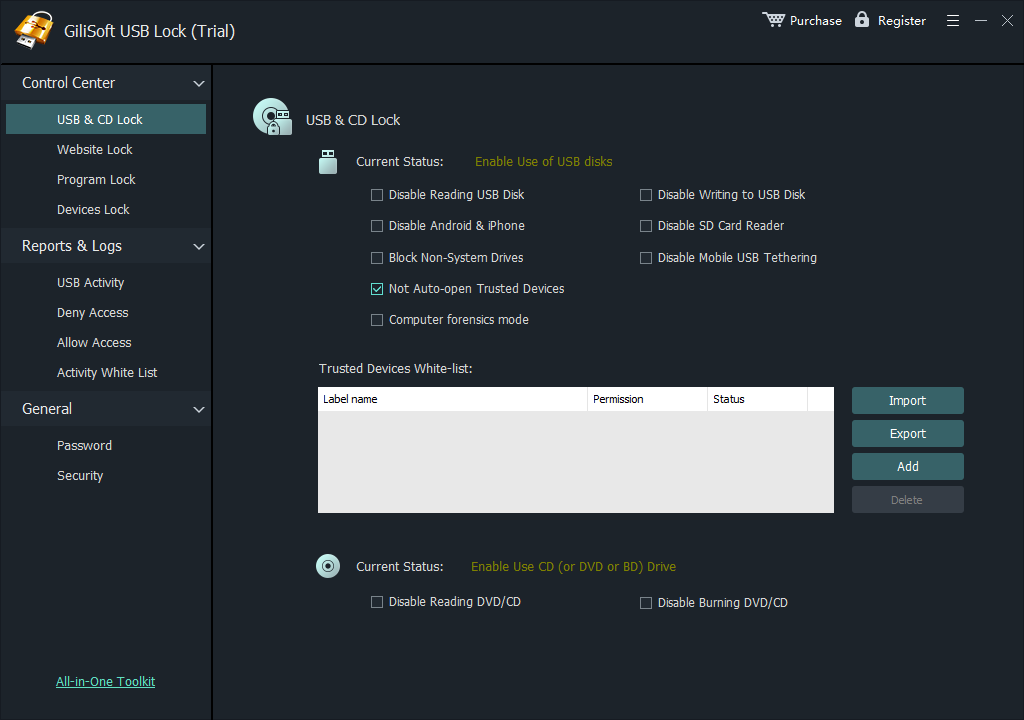
- Disable the required USB/SD storage, phone-transfer, tethering, or CD/DVD channels.
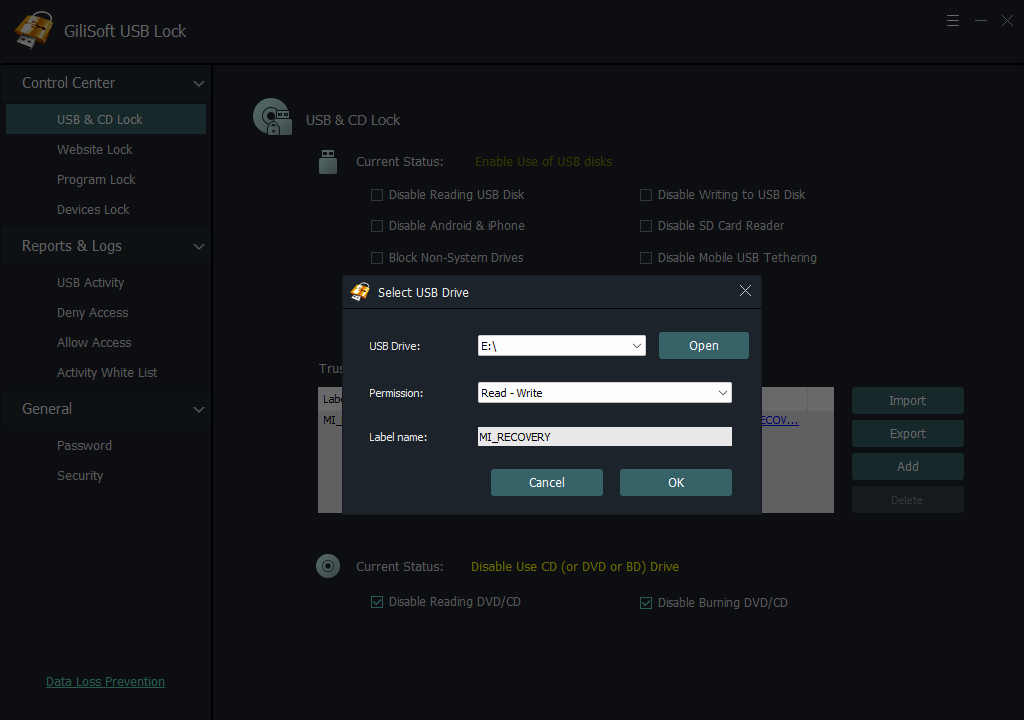
- If company storage is needed, insert each approved drive and add it to the trusted-device whitelist.
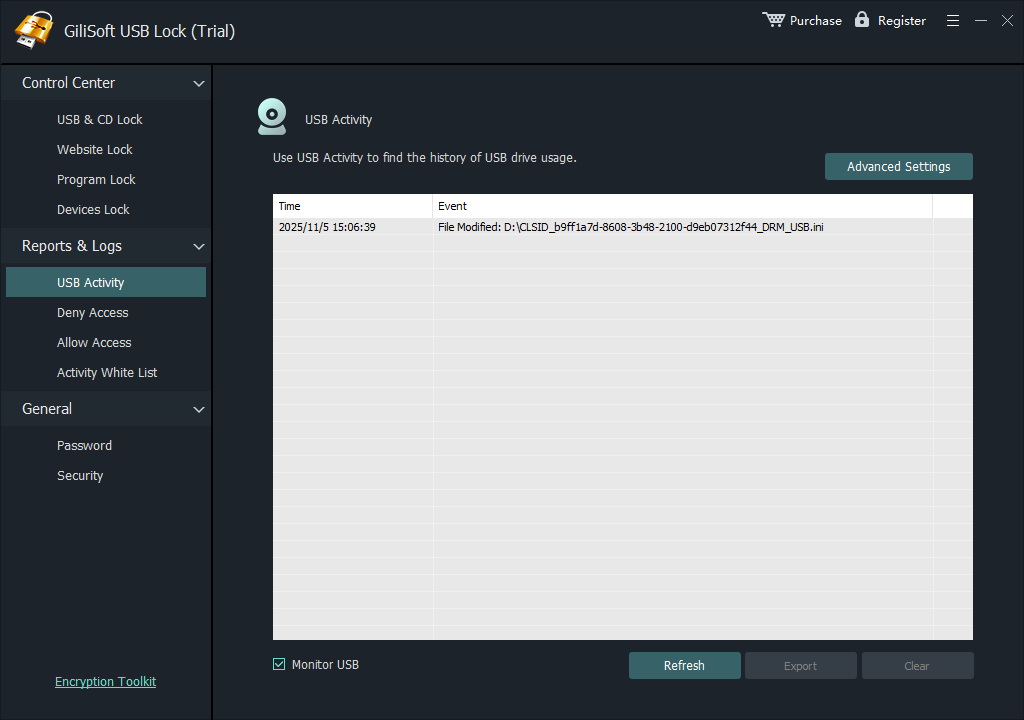
- Test an unknown drive and an approved drive under a normal employee account, then review the access log.
- Export the verified whitelist and document who may authorize future exceptions.
Recommended USB Access by Employee Scenario
- HR, finance, and legal: disable unknown storage and approve only documented business media.
- Front-desk and shared PCs: disable storage and phone transfer where no removable media is required.
- Sales and training laptops: whitelist the presentation drive and block personal devices.
- Support and engineering: retain approved diagnostic media and record exceptions by owner and purpose.
- Contractor and temporary PCs: apply restrictions before the workstation or account is issued.
- Remote laptops: keep the same local restrictions when the employee is away from the office network.
Disable Unapproved USB Access Without Breaking Daily Work
GiliSoft USB Lock combines USB/SD storage control, trusted-device whitelisting, Android and iPhone transfer controls, USB tethering restrictions, CD/DVD controls, password-protected settings, and activity records in one Windows interface. It is built for the practical office case: employees cannot use unapproved transfer channels, but registered company devices and normal peripherals remain available.

GiliSoft USB Lock
Download the trial and test it on a representative employee PC with an approved drive, an unknown drive, required peripherals, and any phone channels covered by company policy.
Planning a larger employee deployment?
GiliSoft can discuss volume licensing, OEM requirements, and custom development for organizations with specific device-control or rollout needs.
Contact sales@gilisoft.comBefore You Apply the Restriction
- The written rule says whether storage is blocked, read-only, or limited to approved devices.
- Required peripherals and company drives have been tested.
- The administrator password and recovery email are stored securely.
- An unknown personal drive is rejected under a normal employee account.
- Every approved company drive still opens as intended.
- Phone transfer, tethering, SD card, and CD/DVD rules have been verified where relevant.
- Access logs have a named reviewer and review schedule.
- The tested whitelist and exception record have been backed up.
Related Employee USB Control Guides
- Block personal USB drives for employees
- Prevent data exfiltration through removable media
- Prevent USB data leakage on office PCs
- Allow only approved USB devices
- Export and import an approved USB whitelist
- Block phone and USB data transfer
- Disable USB ports on Windows 11
- Block USB ports on company computers
- USB Lock help by topic
Disable Employee USB Access FAQ
Can I disable employee USB storage without disabling keyboards and mice?
Yes. Apply removable-storage controls rather than disabling the USB controller. Test every required peripheral before deployment.
Can approved company USB drives still work after access is disabled?
Yes. Add designated company drives to the trusted-device whitelist while personal and unknown removable storage remains restricted.
Can employees change the configured USB restrictions?
USB Lock settings can be protected with an administrator password so normal employees cannot casually change the configured rules.
Can phone transfer and USB tethering be disabled too?
Yes. USB Lock includes controls for Android and iPhone data access and can restrict USB tethering when those channels are not permitted.
Should I disable all access or only USB writing?
Deny all storage access where removable media is unnecessary. Deny writing where employees may read approved material but must not copy company files out. Use a whitelist where selected company drives must remain available.
Can I deploy the same approved-device list to other employee PCs?
Yes. Export the tested trusted-device list and import it on similar employee PCs, then verify each required device before wider deployment.
Official Windows References
- Microsoft Learn: removable-storage access policies
- Microsoft Learn: Defender for Endpoint device-control policies
- Microsoft Learn: deploy Defender Device Control with Group Policy
- NIST SP 800-82 Rev. 3: restrict removable-media use according to policy
Disable unapproved USB access on employee Windows PCs
Test the trial with an unknown drive, an approved company drive, required peripherals, and the phone-transfer rules your workplace needs.