
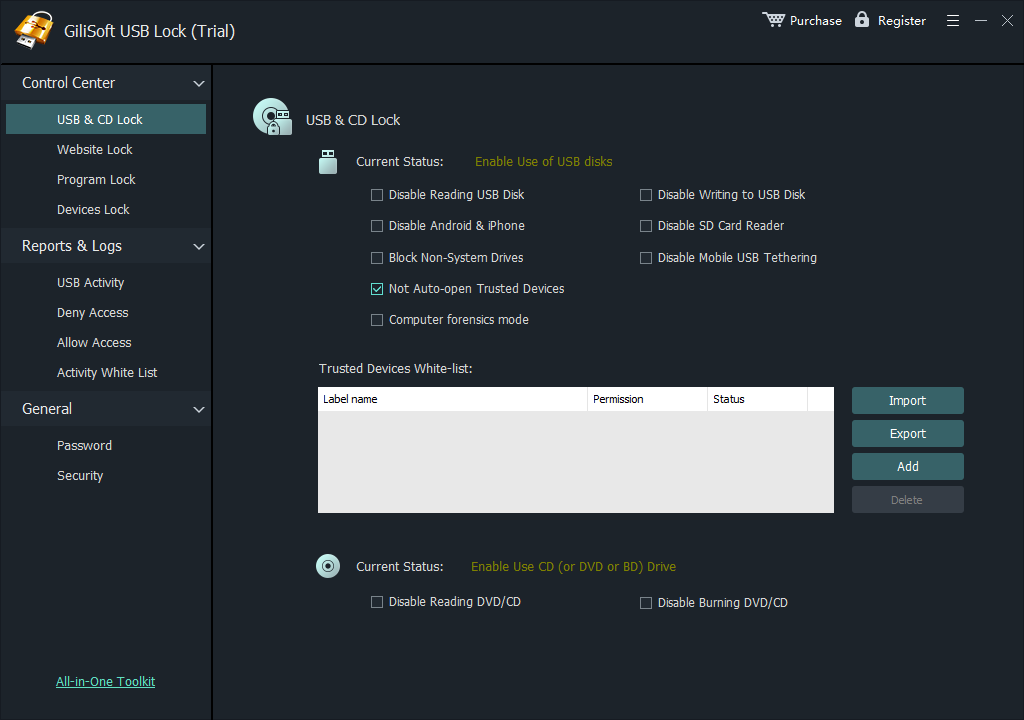
Deny write access to removable disks while preserving read access when the PC still needs to open approved files.
First Decide What "Disable USB Ports" Should Mean
A USB port can carry storage, input, printing, phone data, cameras, audio devices, and docking hardware. Disabling a USB controller can therefore stop far more than flash drives. For most Windows 11 PCs, the safer goal is to restrict USB storage or data transfer while leaving normal peripherals working.
Deny read and write access for unapproved flash drives and external disks, then allow reviewed devices.
Use Device Manager only for a specific device or controller after checking what else is connected beneath it.
Practical rule: if the real concern is data leakage, target removable storage. Do not disable every USB hub unless the computer has an alternative keyboard, mouse, and recovery path.
Best Ways to Disable USB Access in Windows 11
The methods below solve different problems. Choose the narrowest rule that meets the security goal.
| Method | Best for | Approved-device exceptions | Windows edition |
|---|---|---|---|
| GiliSoft USB Lock | Readable USB policy, trusted-device whitelist, and local event review | Yes, through the whitelist | Windows 11 and Windows 10 |
| Removable Storage Access | Deny read, write, execute, or all removable-storage access | Class-based policies; more planning required | Pro, Enterprise, Education |
| Device Installation Restrictions | Prevent new devices or allow only specified hardware IDs | Yes, by device ID, instance ID, or setup class | Pro, Enterprise, Education |
| USBSTOR registry setting | Disable the USB mass-storage driver on one PC | No convenient device whitelist | Local administrator method |
| Device Manager | Temporarily disable a specific USB device | Manual, device by device | All common Windows 11 editions |
Method 1: Disable USB Storage with GiliSoft USB Lock
Use this approach when you want a visual policy instead of editing registry values or maintaining long hardware-ID rules by hand.
- Install USB Lock and open it with the administrator password.
- Choose USB & CD Lock.
- Set the required USB disk read and write restrictions.
- Apply the policy, reconnect a test drive, and confirm the result.
Use a test flash drive first. Confirm that keyboards, mice, printers, card readers, phones, and docks still behave as intended.
Separate read and write rules
Block copying files out to removable media, deny reading unknown drives, or apply both restrictions.
Keep trusted USB drives usable
Add approved devices to the whitelist instead of repeatedly opening every USB drive.
Reuse a trusted-device list
Export the whitelist and import it on another managed PC for more consistent deployment.
Review access events
Use the program log to check whether blocked and approved device activity matches the intended rule.
2
Use Removable Storage Access Group Policy
Windows 11 Pro, Enterprise, and Education expose separate policies for removable disks. Microsoft documents controls for denying read access, write access, or all access to removable-storage classes.
- Press Win + R, enter gpedit.msc, and open Local Group Policy Editor.
- Go to the path below.
- Open Removable Disks: Deny write access, Removable Disks: Deny read access, or All Removable Storage classes: Deny all access.
- Select Enabled, apply the setting, run gpupdate /force or restart, then test a removable drive.
Microsoft states that All Removable Storage classes: Deny all access takes precedence over individual removable-storage settings. Use it only when the broader effect is intentional.
3
Prevent Unapproved USB Devices by Hardware ID
Device Installation Restrictions are useful when an administrator wants to block most removable devices but keep a small approved set. Microsoft documents allow and prevent policies based on hardware IDs, device instance IDs, and device setup classes.
- Connect the approved USB device and open Device Manager.
- Open the device properties, select Details, and record the appropriate hardware or instance ID.
- Open Group Policy and configure an allow policy for the approved identifiers.
- Configure the matching prevent policy and, when required, apply it to already installed devices.
- Test both an approved drive and an unknown drive after policy refresh.
4
Disable the USB Mass-Storage Driver with USBSTOR
The USBSTOR service setting is a direct local method for stopping USB mass-storage support. It does not provide a friendly approved-device list, and it should not be confused with disabling all USB controllers.
- Create a restore point and record the original value.
- Open Registry Editor as an administrator.
- Go to HKEY_LOCAL_MACHINE\SYSTEM\CurrentControlSet\Services\USBSTOR.
- Set Start to 4 to disable USB storage, then restart and test.
- To reverse the change, restore Start to 3 and restart.
This method is best treated as a controlled administrative change, not a casual tweak. Keep a recovery plan and do not delete the USBSTOR key.
5
Disable a Specific USB Device in Device Manager
This is practical for a known device on one PC, but it is weak as a repeatable policy. Windows can rediscover devices, and disabling a hub or controller can affect everything connected beneath it.
- Press Win + X and choose Device Manager.
- Locate the exact USB storage device under Disk drives or the relevant device category.
- Right-click the device and choose Disable device.
- Confirm the correct device is unavailable, while input and other required peripherals continue working.
Allow Approved USB Drives Instead of Opening Every Port
A deny-by-default rule becomes more practical when approved company drives can be registered once and reused. USB Lock supports adding an inserted device to a trusted list, then exporting and importing that list for other Windows PCs.
- Insert a reviewed USB drive.
- Open the whitelist and choose Add.
- Repeat for other approved devices.
- Choose Export, then use Import on another managed computer.
Verify That the USB Restriction Actually Works
Unknown drive
Confirm the selected read or write restriction is enforced.
Trusted drive
Verify each whitelisted device receives the expected access.
Required peripherals
Test keyboards, mice, printers, docks, phones, and card readers.
Recovery
Confirm an administrator can restore access without editing a broken policy remotely.
Windows 11 USB Port FAQ
Can I block flash drives without disabling my mouse and keyboard?
Yes. Use removable-storage rules or USB Lock storage controls instead of disabling the USB controller or root hub.
Can I block writing but still allow users to read files?
Yes. Windows Group Policy and GiliSoft USB Lock both provide a path to deny write access separately from read access.
Does Windows 11 Home include Local Group Policy Editor?
No. Windows 11 Home does not include the standard Local Group Policy Editor. Use an appropriate local administrative method or USB control software.
Will disabling USB storage encrypt files already on the drive?
No. Access control and encryption are different. Use GiliSoft USB Encryption when files on the drive need password protection.
Can approved USB drives remain usable?
Yes. Add reviewed devices to the USB Lock whitelist and remove devices that are lost, retired, or no longer approved.
Should I disable USB ports in BIOS or UEFI?
Firmware control is useful for dedicated or tightly managed systems, but options vary by manufacturer and may disable entire controllers. Record recovery steps before using it.
Sources and Further Reading
Microsoft LearnADMX RemovableStorage policy reference documents deny-read, deny-write, and deny-all behavior for Windows 11.
Microsoft LearnManage device installation with Group Policy explains allow and prevent rules using device identifiers, including an approved USB drive scenario.
Microsoft LearnDevice installation policy reference lists supported Windows editions and the prevent-removable-device setting.
NIST SP 1334Reducing the Cybersecurity Risks of Portable Storage Media recommends combining technical and physical controls with managed processes for portable media.