
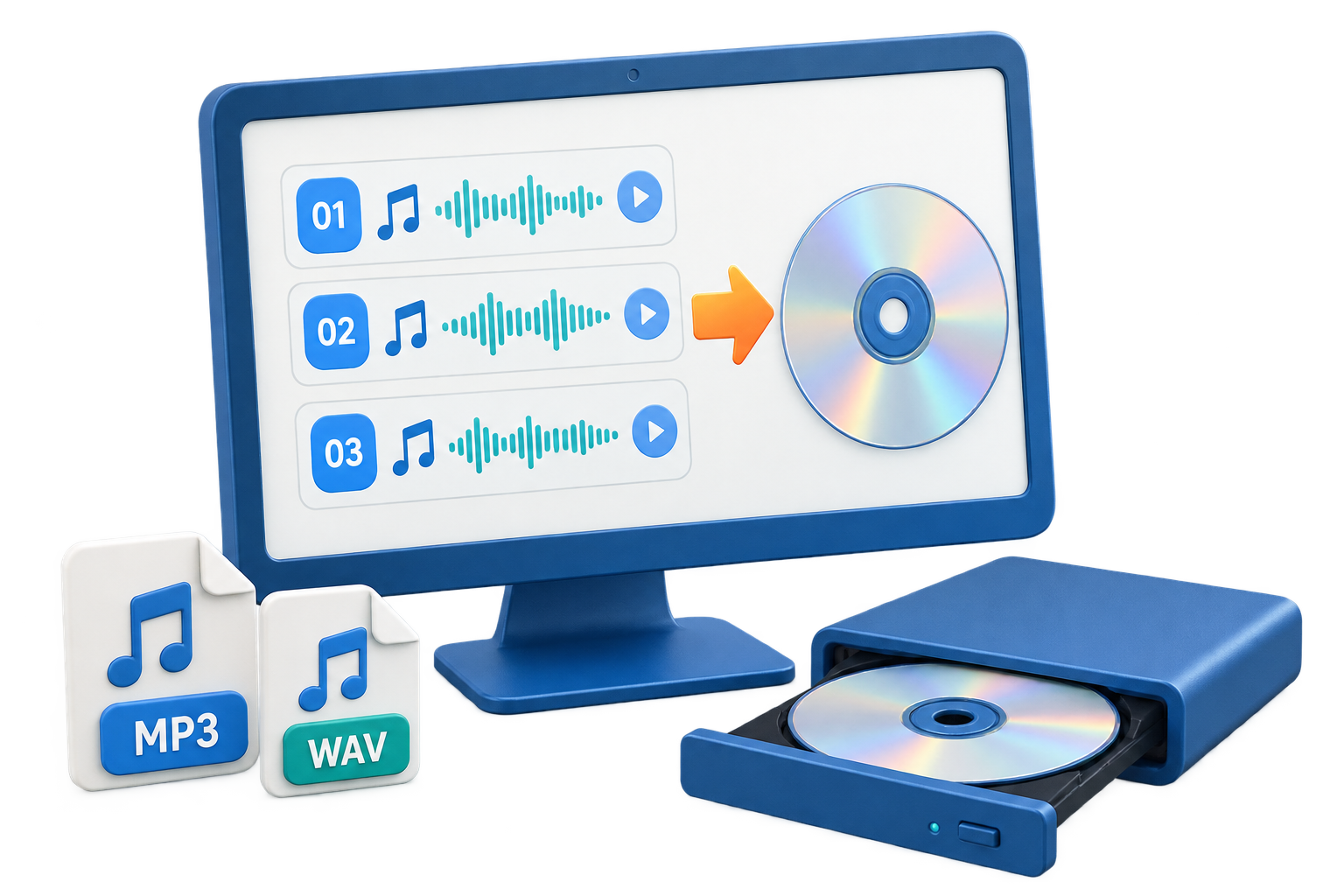
Choose an Audio CD Burner by the Final Player
Quick answer: The best burner is not the one with the longest feature list. Start with the destination player, then require the correct disc mode, support for your source formats, clear capacity feedback, track ordering, a dependable recorder selector, and a workflow for testing the finished disc.
| Playback or workflow | Recommended output | Important check |
|---|---|---|
| Old car or home player | Standard Audio CD and CD-R support | Audio CD mode must be easy to identify |
| Large music collection | MP3 CD or DVD mode | Player must support the file and disc type |
| Long recordings | Trim and preview controls | Avoids burning unwanted sections |
| Repeated delivery | Copy count or saved image workflow | Reduces manual rebuilding |
| Mixed source formats | Audio and supported video import | Preview conversion before burning |
Before You Start
A successful burn begins with the destination player, compatible blank media, and a reviewed source list. Decide those details before the optical drive starts writing.
Required disc modes
Look for Audio CD plus compressed/data modes, with clear differences.
Track preparation
Ordering, removal, trimming, and previews should happen before burning.
Output control
The application should show the selected recorder, capacity, copies, and completion status.
Audio CD Burner for Windows: What to Look For: Step by Step
Define the playback target
List the actual car stereo, home player, PC, or DVD player and check its supported disc types.
Match the software mode
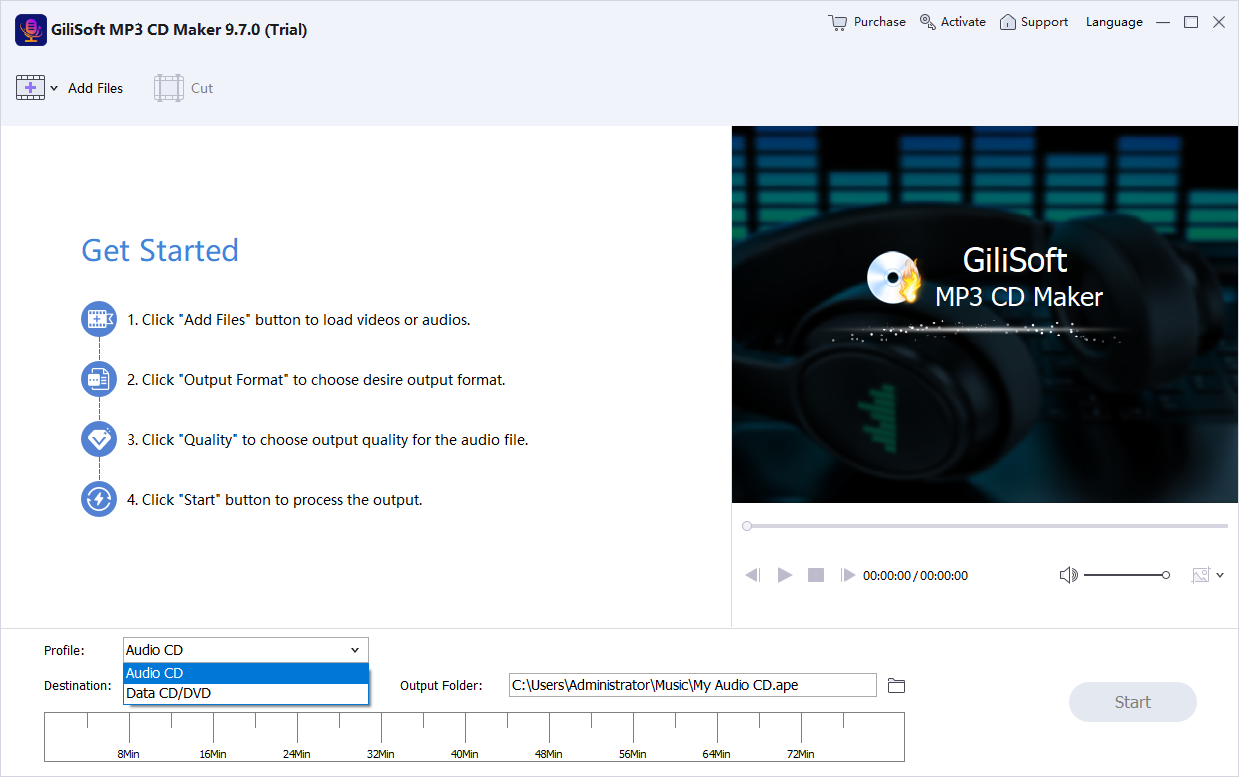
Use standard Audio CD for broad compatibility or MP3/WMA output only for a compatible device.
Check source handling
Confirm the burner accepts the audio formats or supported video sources used by the project.
Review preparation tools
Arrange tracks and test trimming, mixing, or sound adjustment only where the material needs it.
Run a one-disc test
Burn one representative disc before buying media or producing a larger batch.
Evaluate the complete workflow
Confirm playback, repeat-copy controls, image output, rewritable-media handling, and product support.
Improve Disc Reliability and Playback Compatibility
Clear disc-type choices
Audio CD and MP3 CD should not be presented as interchangeable because playback support differs.
Useful source preparation
Track order, trimming, and previews prevent mistakes that cannot be changed on a finalized CD-R.
Repeatable output
Copy count and image creation make recurring disc work easier to reproduce.
Real playback testing
A burner should support a workflow that ends with testing on the destination device.
Recommended Windows Tool: GiliSoft MP3 CD Maker
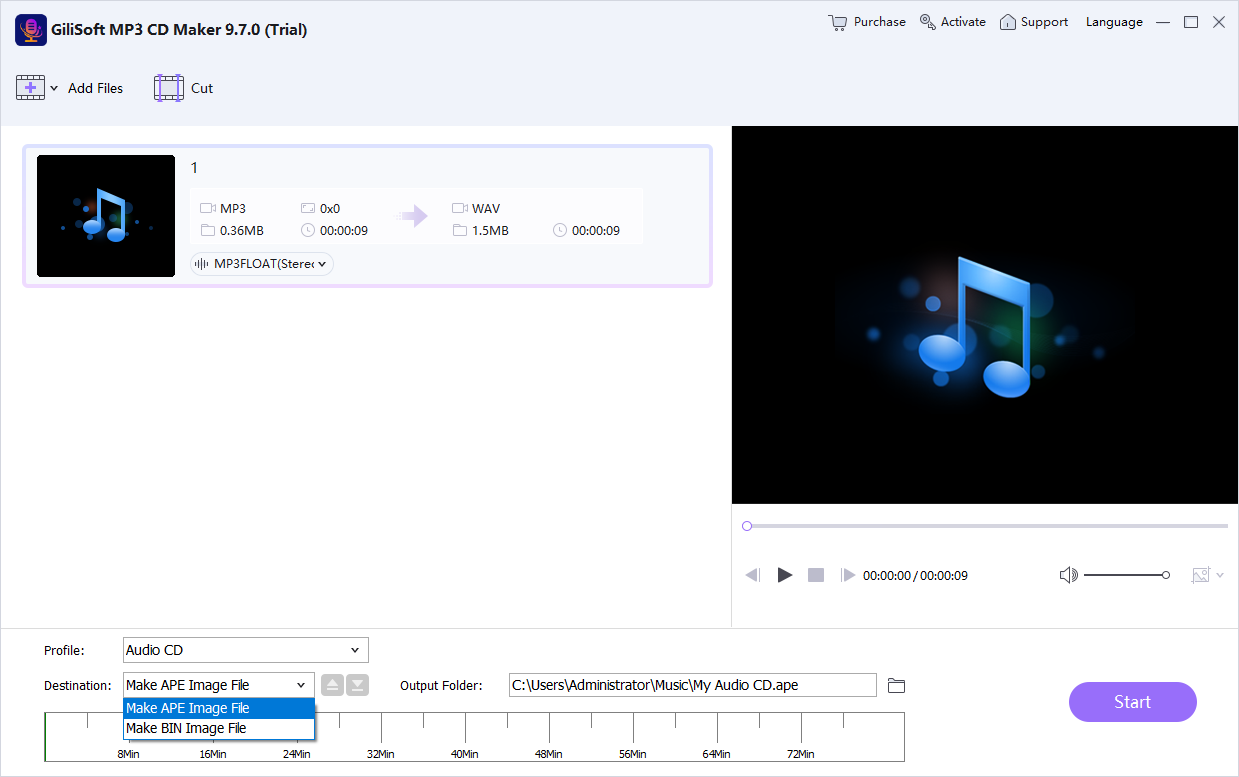
GiliSoft MP3 CD Maker is a practical Windows choice when the job includes standard Audio CDs, MP3 or WMA discs, source preparation, multiple copies, and supported music-disc images. It is a burner, not a CD-ripping replacement.
- Create standard Audio CDs or MP3/WMA music discs from the appropriate mode.
- Import common audio formats and selected video sources when their soundtrack is needed.
- Arrange, remove, trim, mix, or preview material before committing it to disc.
- Test a finished disc before making copies or distributing authorized content.
Troubleshoot Common CD Burning Problems
| Problem | Likely cause | What to do |
|---|---|---|
| Software sees no recorder | Drive is disconnected, unsupported, or unavailable to Windows | Confirm the writer in Windows and close other disc applications |
| Files add but disc will not play | Data/MP3 mode was used for a basic CD player | Create a standard Audio CD instead |
| Burn fails near the end | Media, drive, capacity, or system interruption problem | Try quality media, reduce the project, and avoid sleep or heavy disk activity |
| Output sounds wrong | Source or pre-burn edits were not reviewed | Preview trimmed or processed tracks before writing |
Burn Only Music You Are Authorized to Copy
Use your own recordings, public-domain material, or music for which you have suitable copying and distribution permission. Purchasing access or being able to play a stream does not necessarily grant the right to duplicate it, and technical protection should not be bypassed.
Frequently Asked Questions
Is an Audio CD the same as an MP3 CD?
No. A standard Audio CD stores CD audio for broad player compatibility and is normally limited by playing time. An MP3 CD stores compressed files as data and works only in players that support MP3 discs.
Should I use CD-R or CD-RW?
CD-R is generally the safer choice for older car and home players. CD-RW is reusable, but many older devices do not support it reliably. Check the destination player manual.
Why does the disc play on my PC but not in the car?
The car player may not support the selected disc type, file format, recordable media, folder structure, or an unclosed session. Test a standard Audio CD on CD-R when broad compatibility is the priority.
Can GiliSoft MP3 CD Maker use audio from a video file?
Yes. The product supports selected video sources when their soundtrack is needed, alongside common audio formats. Review the extracted track before burning.
What should I test after burning?
Test the first, middle, and final tracks on the actual destination player. Also confirm track order, navigation, silence between tracks, and that the disc starts after reinsertion.
Can I burn downloaded or streaming music to CD?
Only burn music you own or are authorized to copy. A playable source does not automatically grant duplication or distribution rights, and protected streams should not be bypassed.
More Audio CD and Music Disc Guides
Continue with the disc format, production method, or complete product guide that matches the next task.