
The Quick Answer
This approach is useful when videos must be delivered by USB drive, external disk, local network folder, disc, or another offline channel. It avoids uploading source footage to a browser-based converter or cloud encryption service, and the finished package can be tested before delivery.
What Is Offline Video Encryption?
Offline video encryption is a local file-protection process. The source video stays on the Windows PC while encryption is performed, and the resulting package requires the intended playback method and password. It is different from simply hiding a file, renaming its extension, or placing an open video inside an ordinary folder.
CISA recommends encrypting sensitive information stored on devices and removable media. NIST also treats storage encryption as one layer in a broader plan that includes access control, backups, and recovery preparation. For video delivery, the practical question is whether protection should follow the file, the storage device, or the viewer account.
Why Encrypt Videos Locally?
Keep unreleased source footage local
Private previews, internal recordings, course material, client drafts, and personal archives can be protected without first uploading the original media.
Prepare content without a network
Create and test protected packages in an offline or restricted Windows environment where cloud processing is unavailable or undesirable.
Deliver a controlled package
Password playback and protected-player controls make the handoff more deliberate than sending an ordinary open media file.
Choose the output for the job
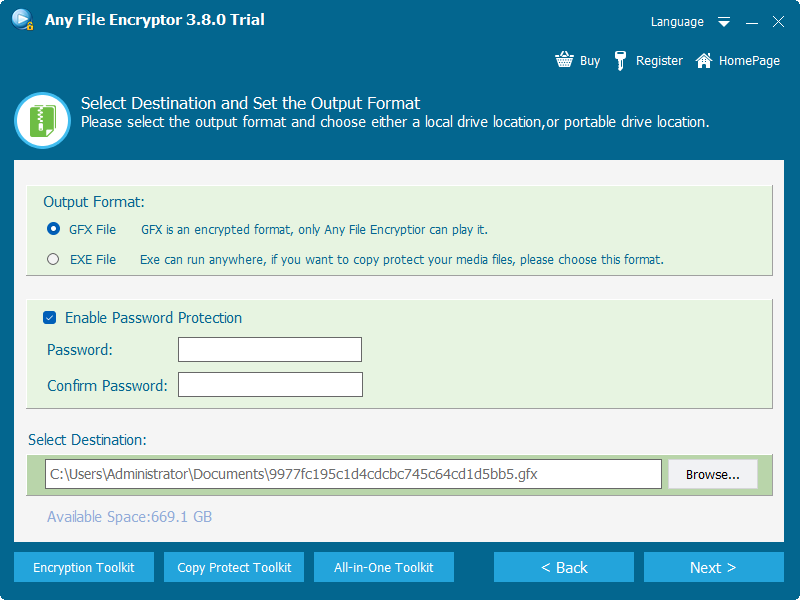
Use GFX for protected-player playback and larger packages, or EXE for a self-running Windows delivery below the EXE size limit.
How to Encrypt a Video Offline
- 1Add the local video files.Import the videos or mixed media files you want to protect from the Windows PC.
- 2Choose GFX or EXE output.Select the package format according to file size, recipient environment, and preferred playback method.
- 3Set and confirm the playback password.Keep the password separate from the protected package when it is delivered.
- 4Select a local destination.Create the encrypted output in a working folder before copying it to removable media or another delivery location.
- 5Test the complete viewing path.Open the package, enter the password, seek through the video, close it, and reopen it on a recipient-style Windows PC.
Choose GFX or EXE Output
| Output | Best for | How it opens | Important detail |
|---|---|---|---|
| GFX | Protected playback, larger video packages, and repeat offline delivery | GiliSoft protected player | Recommended when output exceeds 4 GB |
| EXE | Self-running delivery to compatible Windows PCs | Launch the protected executable and enter the password | EXE output is limited to 4 GB |
| USB-bound EXE | Projects that should open only while one authorized USB drive is connected | Windows EXE with the bound device present | Copying the EXE away from its authorized USB should prevent opening |
Offline Playback and File Controls
Password before playback
The viewer must enter the package password before protected content can be opened.
Protected video player
GFX output is opened through the dedicated player instead of being handed to an ordinary media application as an open source file.
Screenshot and Save As deterrence
Protected viewing can deter screenshots and Save As operations during playback, reducing simple reuse paths.
Optional USB binding
Compatible EXE output can be tied to an authorized USB drive so the package does not open when copied away from that device.
Any Video Encryptor Screenshots
These screens show the actual local workflow: add files, choose the protected output, set a password, and open the encrypted video through the protected player.
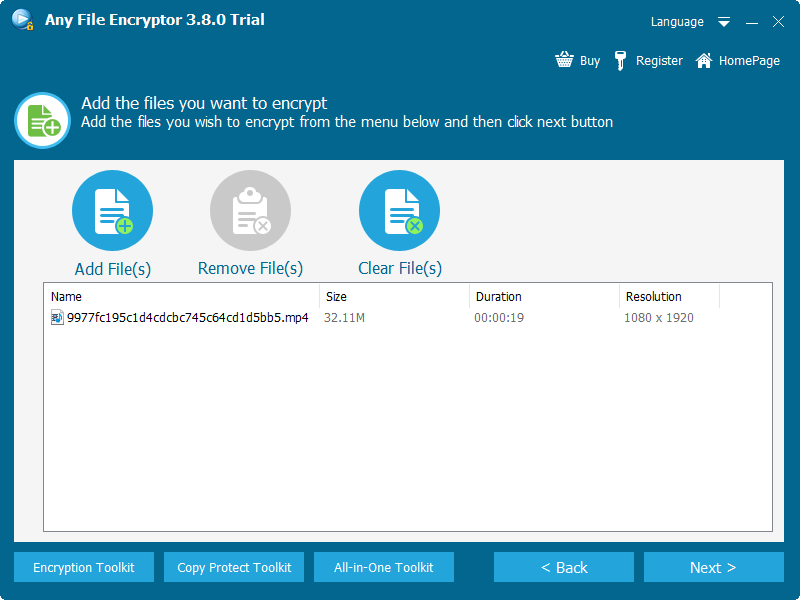 Add local source files
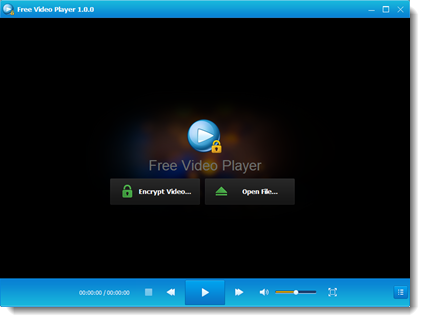 Open protected videos offline
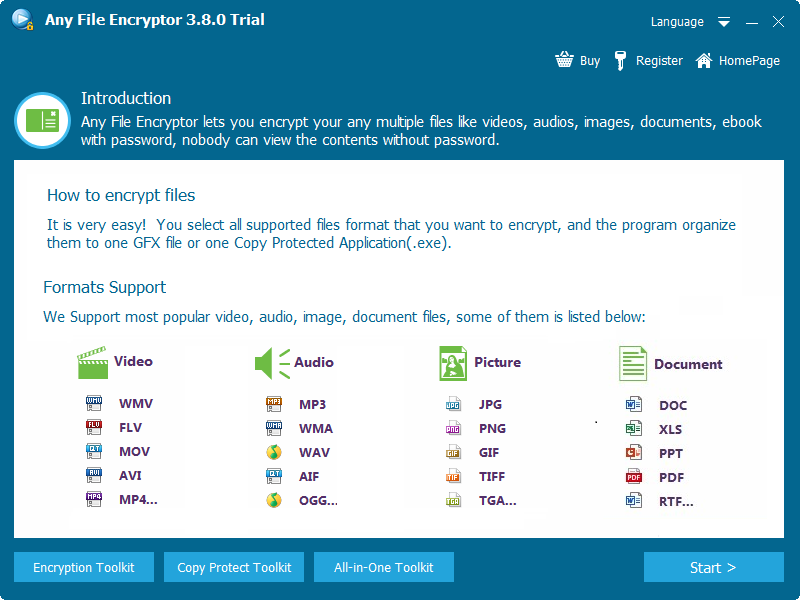 Review supported file categories
Offline Encryption, Drive Encryption, or Video DRM?
| Protection model | Choose it when | Network dependence | Protection focus |
|---|---|---|---|
| Any Video Encryptor | You need local packaging and password-protected offline playback | No continuous connection required for a tested package | The protected media package |
| BitLocker To Go | Every file on a removable drive should remain inaccessible until the volume is unlocked | Not required for normal unlocking | The entire removable drive |
| Encrypted archive | You mainly need protected storage or transfer | Not normally required | The archive; extracted videos become ordinary files |
| Video DRM Protection | You need licensing, device authorization, revocation, blacklists, or dynamic watermarking | Depends on the selected authorization workflow | The viewer and playback permission |
Where Offline Video Encryption Fits
Prepare lessons for restricted or disconnected Windows PCs.
Send client drafts without exposing an ordinary source file.
Package paid lessons for controlled offline playback.
Deliver reference videos where internet access is limited.
Protect sensitive family or private recordings stored locally.
Combine package protection with removable-media delivery.
Before You Deliver the Package
- 1Retain the unencrypted master separately.Encryption is not a replacement for a verified backup.
- 2Test on a clean Windows account or PC.Do not rely only on the creator computer.
- 3Send the password through another channel.Do not store it beside the protected package.
- 4Explain the required player, platform, and USB condition.Clear instructions reduce failed handoffs.
Frequently Asked Questions
Can I encrypt videos without uploading them?
Yes. Any Video Encryptor performs the packaging process on the Windows PC and writes the protected output to the destination you select.
Can the encrypted video play offline?
Yes. After you create and test the package, GFX or EXE playback does not require a continuous internet connection.
Which format should I use for a package larger than 4 GB?
Use GFX. The EXE output workflow is limited to 4 GB.
Does EXE output work on macOS?
No. EXE packages are for Windows. Confirm the recipient platform before delivery.
When is Video DRM Protection a better choice?
Choose Video DRM Protection when the project needs licensing, device binding, password revocation, blacklists, or dynamic watermarking beyond a local password package.
Sources and Further Reading
- CISA: Protect data stored on devices
- CISA: Risks of portable devices
- Microsoft Support: BitLocker Drive Encryption
- NIST SP 800-111: Storage encryption technologies
Related Guides
Encrypt video files with a password | Password protect video files | Package videos as GFX | Package videos as EXE | Protect videos for USB sharing | Video encryption vs video DRM