
How to Prevent Copying Files to a USB Drive
Stop files leaving a Windows PC through unknown USB drives while keeping read access, approved company media, and everyday USB peripherals available.
Block USB Writing, Not Every USB Device
Disabling USB ports is usually broader than the job requires. Keyboards, mice, printers, security keys, and other peripherals also use USB. A write-control rule targets removable storage instead, so the computer can keep its required peripherals and, when appropriate, continue reading approved material from a drive.
Confirm the Copy Direction Before Applying a Rule
| What you need to stop | Correct control | Expected result |
|---|---|---|
| PC to USB | Deny write access | The drive can remain readable, but users cannot save, paste, export, rename, edit, or delete files on it. |
| USB to PC | Deny read access | Users cannot open, import, or copy files from the removable drive. |
| Both directions | Deny all removable-storage access | The drive may remain visible, but file access is rejected. |
| Only named company drives | Trusted-device whitelist | Approved media works while unknown drives remain restricted. |
Compare Ways to Stop PC-to-USB File Copying
| Option | Best fit | Approved-drive support | Administration |
|---|---|---|---|
| GiliSoft USB Lock Recommended | Windows PCs that need direct write control, whitelisting, related media rules, and logs | Yes, through a trusted USB list | Password-protected interface; volume, OEM, and custom deployment options |
| Removable Disks: Deny write access | A uniform read-only rule on supported Windows editions | Not by itself | Local or domain Group Policy; MDM policy is also available |
| Microsoft Defender Device Control | Managed fleets needing device groups, user conditions, and granular permissions | Yes | Requires eligible licensing and policy administration |
| BitLocker-protected removable drives | Organizations that allow writing only to encrypted company media | By encryption status rather than a simple whitelist | Useful with managed encryption and recovery-key procedures |
Prevent File Copying and Keep Approved USB Drives Writable
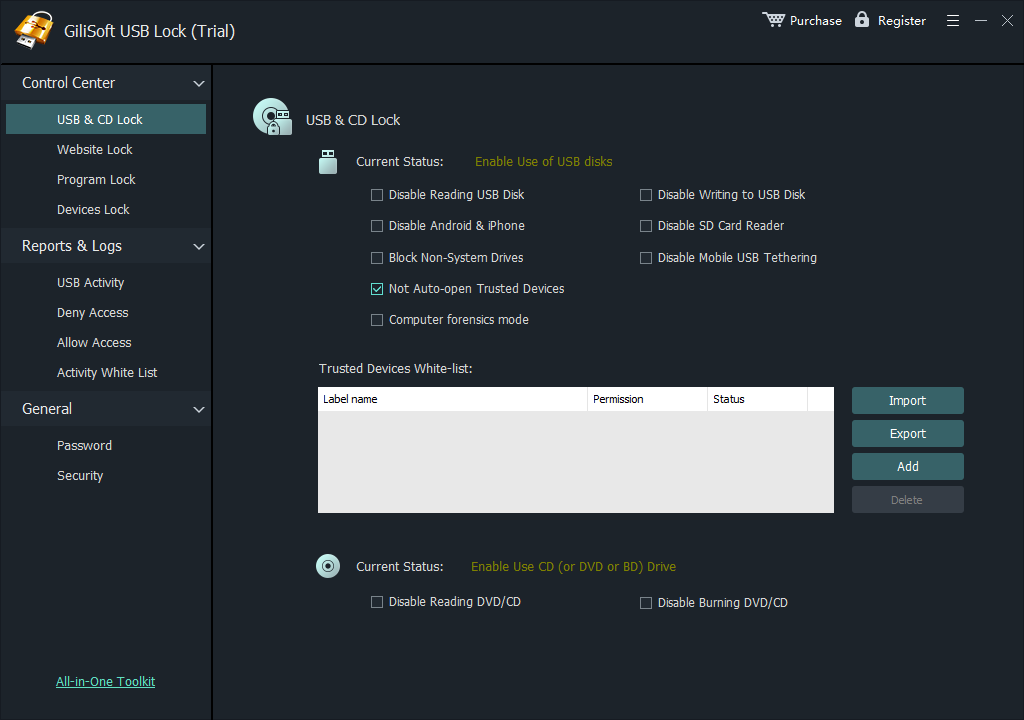
- Install USB Lock, create the administrator password, and set password-recovery information.
- Open the USB and CD/DVD controls and apply the USB storage write restriction required by the PC.
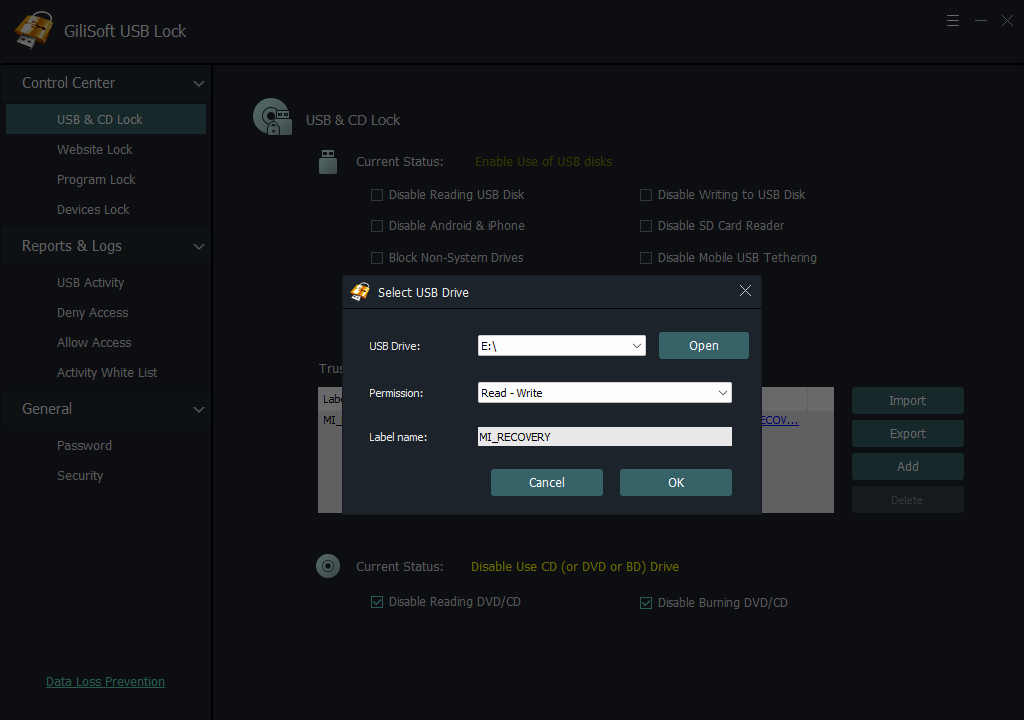
- Insert each verified company drive that must remain writable and add it to the trusted-device whitelist.
- Reconnect an unknown drive and try drag-and-drop, Save As, rename, delete, archive output, and command-line copying.
- Open an existing file from the unknown drive to confirm read access still works when a read-only policy is intended.
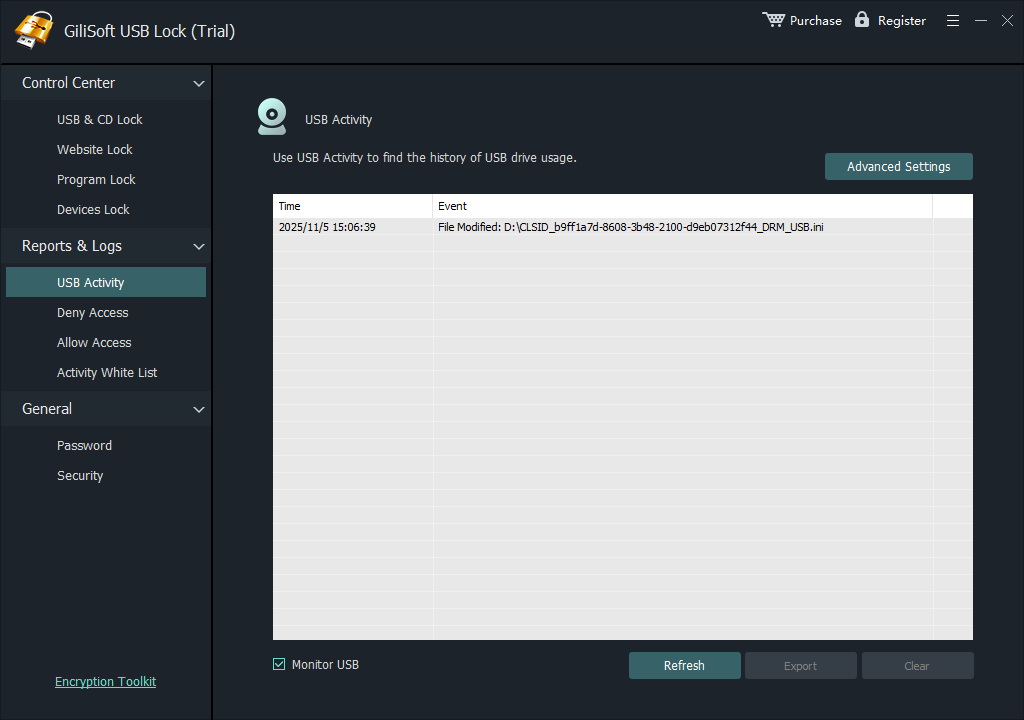
- Reconnect an approved drive, verify normal writing, and review the access log for allowed and blocked attempts.
- Export the tested whitelist before applying the same device list to additional computers.
Set Removable Disks to Deny Write Access
On supported Windows editions, open gpedit.msc and navigate to Computer Configuration > Administrative Templates > System > Removable Storage Access. Enable Removable Disks: Deny write access.
- Open Local Group Policy Editor with administrator rights.
- Open the Removable Storage Access policy folder.
- Enable Removable Disks: Deny write access and apply the change.
- Run gpupdate /force, reconnect the drive, and test the full set of write operations.
- On managed PCs, use gpresult when the rule is missing or another domain policy overrides it.
Allow Write Access Only to Approved USB Drives
Microsoft Defender Device Control can organize devices into groups and apply read, write, or execute permissions by device, user, or machine. A common company design is to make unknown removable storage read-only, then create an allow rule for registered corporate drives that need write access.
- Identify approved drives by stable device properties rather than a drive letter.
- Apply the broad read-only rule before adding the narrower writable-device exception.
- Test the rule as a normal employee account, not only as an administrator.
- Manage phones, SD cards, cameras, and optical media as separate transfer channels.
- Document the owner, purpose, and review date for every writable-device exception.
Stop USB Copying Without Building Complex Policy Files
GiliSoft USB Lock combines USB and SD storage control, trusted-drive whitelisting, Android and iPhone transfer rules, tethering restrictions, CD/DVD controls, password-protected settings, and access records in one Windows application. It is well suited to offices, shared computers, front-desk PCs, classrooms, and other environments where unknown drives should not receive files.

GiliSoft USB Lock
Use the trial on a representative PC and verify unknown media, approved drives, required peripherals, phones, and SD cards before wider deployment.
Need rollout support?
GiliSoft provides volume licensing, OEM options, and custom development for organizations with specific USB-control or deployment requirements.
Contact sales@gilisoft.comTest More Than Drag-and-Drop
- Copy and paste a file from the desktop to an unknown USB drive.
- Use Save As and Export from office, media, and line-of-business applications.
- Try to rename, edit, overwrite, and delete a file already stored on the drive.
- Create an archive, backup, or command-line output directly on the USB drive.
- Open an existing USB file to confirm read access still works when intended.
- Repeat every operation with an approved writable company drive.
- Test phone transfer, SD cards, and other removable media separately.
- Reconnect the drive, restart Windows, and confirm the event appears in the log.
Related USB Copy-Control Guides
- Block USB file copying in both directions
- Disable USB storage read and write access
- Disable USB access for employees
- Allow only approved USB devices
- Export and import a USB whitelist
- Block phone and USB data transfer
- Prevent removable-media data leakage
- Browse USB Lock help by topic
Prevent Copying Files to USB FAQ
Can I stop users copying files to USB but still let them read the drive?
Yes. Deny write access while leaving read access enabled. Users can open existing USB files, but cannot save new files or changes to the drive.
Does deny write access also block deleting or editing files on the USB drive?
Yes. Editing, renaming, overwriting, and deleting all change data or metadata on the drive and should be rejected by a working write restriction.
Can selected company USB drives remain writable?
Yes. Add verified company drives to a trusted-device whitelist, or use enterprise device groups to create a narrower write-allow exception.
Will USB write blocking disable keyboards, mice, or printers?
No, not when the rule targets removable storage rather than the USB host controller. Test all required peripherals after deployment.
Is the Removable Disks: Deny write access policy available on Windows Home?
The Local Group Policy Editor is normally available on Pro, Enterprise, and Education editions, not Windows Home. USB Lock provides a direct interface across supported Windows editions.
Can phone transfer and SD cards bypass a USB flash-drive rule?
They may use different device or transfer classes. Set and test separate controls for phones, SD cards, cameras, tethering, and optical media.
Official References
- Microsoft Learn: configure Removable Disks deny-write access
- Microsoft Learn: Defender Device Control permissions and device groups
- Microsoft Learn: deploy Defender Device Control with Group Policy
- Microsoft Learn: Storage Policy CSP and removable-disk write access
- CISA Cross-Sector Cybersecurity Performance Goals: limit removable-media use
Stop unknown USB drives from receiving company files
Keep the Windows peripherals and approved storage your work requires, while blocking unapproved PC-to-USB copying.