

Use the File Shredder in GiliSoft File Lock Pro when you want point-and-click shredding of files, folders, or drives. Use Microsoft's SDelete or the built-in cipher /w command when you prefer a command line, or need to wipe data you already deleted. Skipping the Recycle Bin is convenient but does not overwrite anything.
First Decide What "Permanently Deleted" Means for You
Secure deletion solves different problems depending on whether the file still exists, was deleted long ago, or the whole drive is changing hands. NIST's media sanitization guidance (SP 800-88) makes the same distinction between clearing files and sanitizing entire devices.
Destroy specific existing files
The files are still on the drive and you want their contents overwritten so recovery tools find nothing.
Erase things deleted in the past
Files were deleted normally weeks ago. Their data may still sit in the drive's free space and needs wiping.
Prepare a drive for sale or disposal
Everything on the drive should be unrecoverable before it leaves your control.
Just skip the Recycle Bin
You want everyday deletions to bypass the bin. Convenient, but not real protection on its own.
Compare Four Ways to Shred Files on Windows
| Method | Overwrites data? | Scope | Interface | Best fit |
|---|---|---|---|---|
| File Lock Pro File Shredder Recommended | Yes | Files, folders, entire drives | Graphical | Everyday shredding without the command line |
| SDelete (Microsoft Sysinternals) | Yes, DoD 5220.22-M | Files, folders, free space | Command line | Advanced users and scripts |
| cipher /w | Yes, free space only | A whole volume's unused space | Command line, built-in | Wiping previously deleted data with no downloads |
| Skip the Recycle Bin | No | Future deletions only | Graphical | Convenience - not real shredding |
Shred Files with GiliSoft File Lock Pro
The direct choice when you want a graphical tool that shreds selected files, folders, or drives on internal and external disks.
Launch GiliSoft File Lock Pro, enter the valid email, and set a password to register.
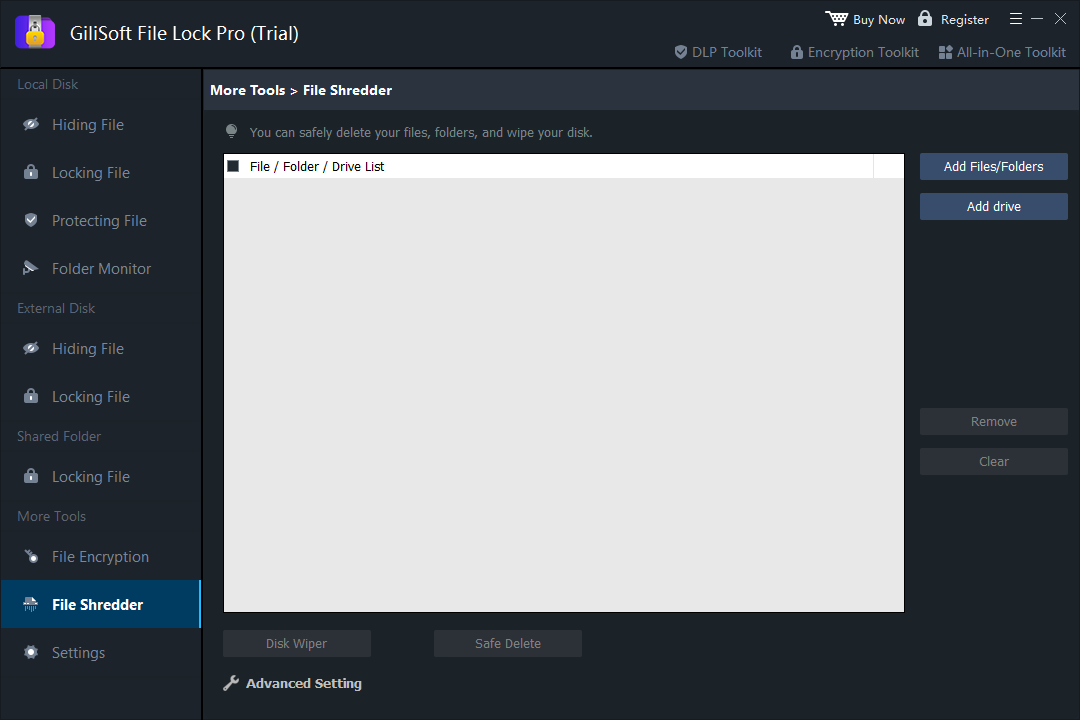
Open More Tools > File Shredder, then click Add Files/Folders or Add drive to select what you need to shred.
Confirm the selected items, then click Safe Delete to shred files and folders, or Disk Wiper to wipe an entire drive.
Verify with a recovery tool if the data matters - shredded items should no longer be found.
What Else Can GiliSoft File Lock Pro Do for You
File Shredder is only one module. The same master password unlocks a complete privacy toolkit, so you can protect the files you keep as easily as you destroy the ones you don't:
Lock files, folders, and drives
Put a password on selected content across local disks, external drives, and USB sticks. Nobody opens it without the password. See how folder locking works.
Hide private files completely
Make files, folders, or whole drives invisible in File Explorer and Windows search - even in Safe Mode. Learn about hiding files.
Block changes and deletion
Protecting File lets others read a file but stops them from modifying, renaming, moving, or deleting it - even with Shift+Delete. Read the anti-deletion guide.
Lock USB and external drives
Apply the same lock to a folder on a flash drive or external hard disk, with master and client passwords. Lock a folder on a USB drive.
Lock LAN shared folders
Limit who can open folders shared over the office network by putting a password on them. Protect a shared folder.
Monitor folder activity
Folder Monitor logs every change, write, or access attempt on watched folders and disks, with a reviewable program log. Set up folder monitoring.
Encrypt to portable GFL / EXE
AES-encrypt files or folders into GFL or self-opening EXE packages that travel safely to other computers. Encrypt a file step by step.
Protect the software itself
Stealth mode hides the program, wrong-password lockout triggers after five attempts, nobody can uninstall without the password, and a recovery email rescues a forgotten master password.
Shred Files with SDelete from Microsoft Sysinternals
A free Microsoft utility that implements the DoD 5220.22-M clearing and sanitizing standard for files, folders, and free space.
Download SDelete from the official Microsoft Sysinternals page and extract the ZIP. Copying sdelete.exe to C:\Windows\System32 makes it available from any folder.
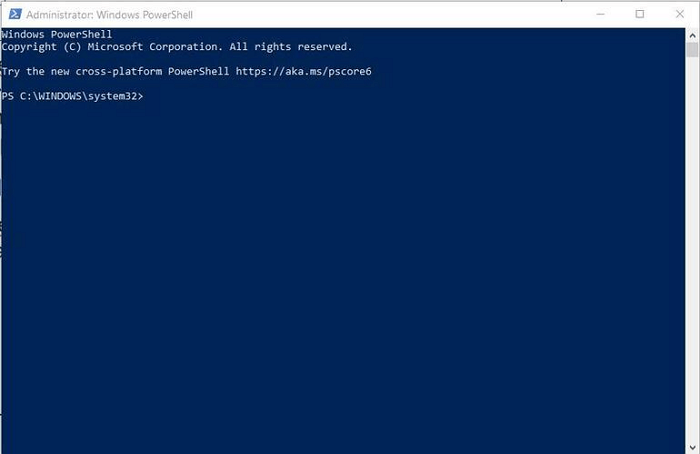
Right-click the Start button and open "Windows Terminal (Admin)" or "Command Prompt (Admin)".
Run SDelete against the target, for example sdelete -p 3 -s -q "D:\Private" to shred a folder with three passes.
To wipe data you deleted earlier, run sdelete -c C: and let it clean the drive's free space.
| Parameter | What it does |
|---|---|
| -p | Number of overwrite passes (default is 1). Use -p 3 for extra assurance. |
| -s | Recurse subdirectories. |
| -q | Quiet mode. |
| -r | Remove the Read-Only attribute. |
| -c | Clean free space on a drive. |
| -z | Zero the free space (useful for virtual disk optimization). |
Wipe Free Space with the Built-in Cipher Command
Windows ships with cipher, a command that can overwrite everything you previously deleted without downloading anything.
Delete the files normally and empty the Recycle Bin.
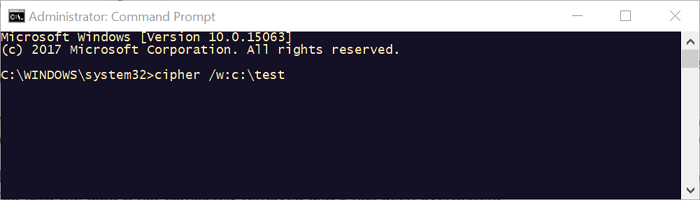
Open PowerShell or Command Prompt from the Start menu.
Run cipher /w:C:, replacing C with the drive letter or a folder path such as cipher /w:D:\OldFiles.
Wait for the three passes (zeros, then ones, then random data) to finish. Large drives can take hours, so overnight is fine.
Skip the Recycle Bin for Everyday Deletions
A convenience setting that stops deleted files from piling up in the bin - useful, but not a shredder.
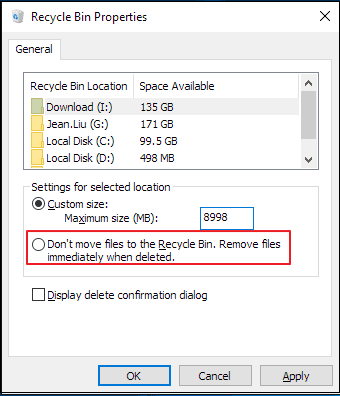
Right-click the Recycle Bin and open Properties.
Select the drive you want to change.
Enable Don't move files to the Recycle Bin. Remove files immediately when deleted, then click Apply and OK.
Methods That Do NOT Permanently Delete Files
Shift + Delete
It only skips the Recycle Bin. The file's data remains on the drive until something overwrites it.
Emptying the Recycle Bin
Same problem - the pointers are removed, the contents stay in free space and remain recoverable.
Quick format
A quick format rebuilds the file system index without wiping the data area. Only a full format on Windows Vista and later writes zeros.
Hiding or renaming files
Changing visibility or the file name protects nothing. The data is still fully readable by any tool that scans the disk.
Important: Shredding Files on an SSD Works Differently
Most shredding advice was written for hard drives. On a modern SSD, two technologies change the picture:
Wear leveling
The SSD controller spreads writes across memory cells, so an "overwrite" may land on different physical cells than the original data.
TRIM
Windows 10/11 tells the SSD which blocks are no longer needed, and the drive erases them in the background - deleted files often become unrecoverable on their own.
For an SSD, shred files before deletion with File Lock Pro or SDelete so the content is scrambled at the file-system level, turn on BitLocker device encryption so leftovers are unreadable, and use the manufacturer's Secure Erase or Sanitize tool when retiring the drive.
Safe Shredding Checklist
Shredding is irreversible by design. Keep a separate, tested copy of anything you might need again.
SDelete and cipher have no undo and no preview. Verify the drive letter and folder before running them.
Emptying the Recycle Bin is only half the job. Run cipher /w or SDelete -c to erase what was left behind.
Prefer encryption plus the manufacturer's sanitize tool over repeated overwrite passes, which add wear without certainty.
Frequently Asked Questions
Does Shift + Delete permanently delete files?
No. Shift + Delete only skips the Recycle Bin. The file data stays on the drive until overwritten, so recovery tools can still restore it.
Can shredded files be recovered?
Once a file's disk sectors are overwritten by a shredder, SDelete, or cipher /w, recovery software cannot bring the contents back.
Is cipher /w safe for my existing files?
Yes. According to Microsoft, cipher /w only removes data from unused disk space. Current files are not touched, but the process can take a long time.
How many overwrite passes do I need?
For modern drives, one overwrite pass is generally enough to defeat software recovery. Extra passes mainly add time, not much safety.
Does formatting a drive shred the files?
A quick format does not - it only rebuilds the file system index. A full format on Windows Vista and later writes zeros over the drive, which wipes HDD data.
What about files already in the Recycle Bin?
Empty the Recycle Bin first, then run cipher /w or SDelete -c on that drive to wipe the free space where those files remain.
Sources and Further Reading
- Microsoft Learn: SDelete - Sysinternals secure delete utility
- Microsoft Learn: cipher command reference (/w parameter)
- NIST SP 800-88: Guidelines for Media Sanitization
- CISA: Protect data stored on your devices
Command syntax and overwrite behavior are documented in the Microsoft references above. Product steps refer to GiliSoft File Lock Pro 13.5 on Windows 11/10/8/7.