
Choose the right protection method
| Method | Best use | What happens after access | Recommended when |
|---|---|---|---|
| GiliSoft Copy Protect | Training videos and supporting files delivered offline on USB | Playback and file use follow the selected package rules | You need one controlled GCP or EXE release |
| GiliSoft Video DRM Protection | Video-first courses that need viewer authorization after delivery | Passwords, device rules, dynamic watermarks, expiry, and blacklist revocation remain part of protected playback | Ongoing video access control and supported desktop/mobile playback matter most |
| GiliSoft USB Encryption | Protecting a lost or stolen removable drive | Files behave normally after the private area is unlocked | Data-at-rest protection is the primary requirement |
| Normal MP4 or password ZIP | Trusted recipients who may keep reusable source files | The video is ordinary after copying or archive extraction | Post-delivery restrictions are not required |
Why ordinary USB video delivery is easy to redistribute
USB media is convenient for classrooms, factories, field teams, remote sites, and customers with unreliable internet access. The same convenience creates a simple reuse path: an ordinary lesson video can be copied to another disk, attached to a message, uploaded to shared storage, or imported into a different training library.
Build a protected training-video USB with GiliSoft Copy Protect
- Create a clean release folder containing final lesson videos, captions, approved handouts, and the files learners actually need. Keep project files, editable masters, instructor notes, and obsolete revisions outside it.
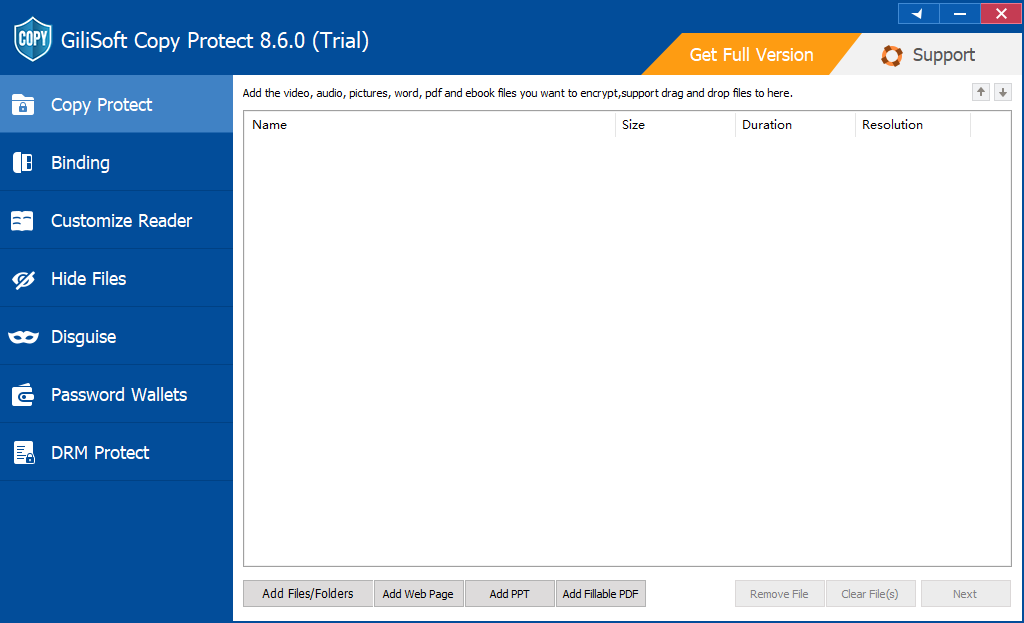
- Open Copy Protect and add the videos or complete training folder in the order recipients should use them.
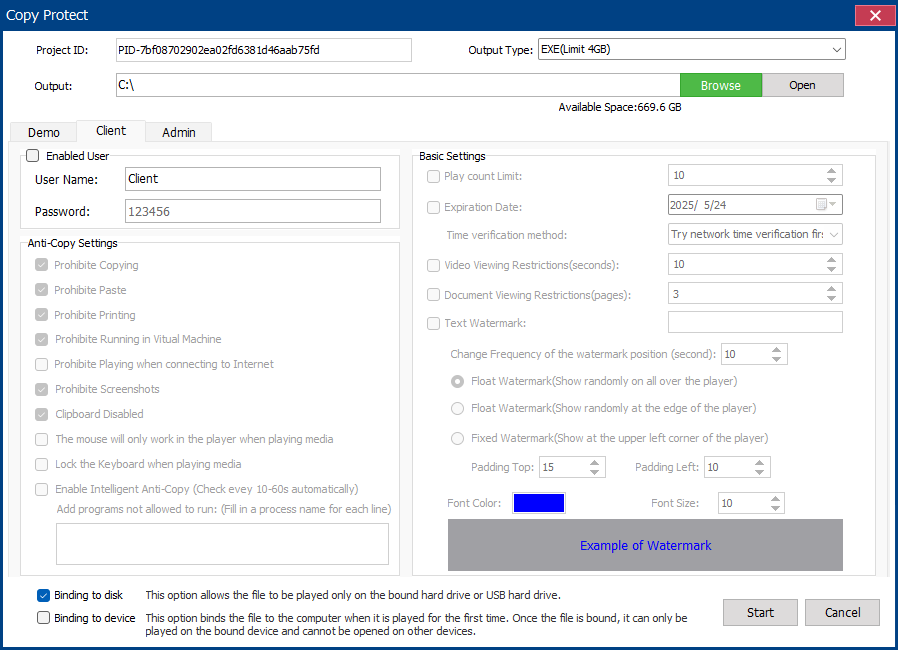
- Choose GCP for the standard protected reader and larger training libraries. Choose EXE for a self-running Windows package only when the complete output remains within the 4 GB EXE limit.
- Configure client rules for copying, clipboard use, screenshots, printing, Save As, virtual-machine playback, expiry, and viewing limits.
- Add the learner, customer, department, or course name as a visible watermark, then bind the release to an approved USB drive or Windows PC when needed.
- Build the package and test the password, video playback, audio, captions, links, expiry, relaunch behavior, and device binding on another Windows computer.
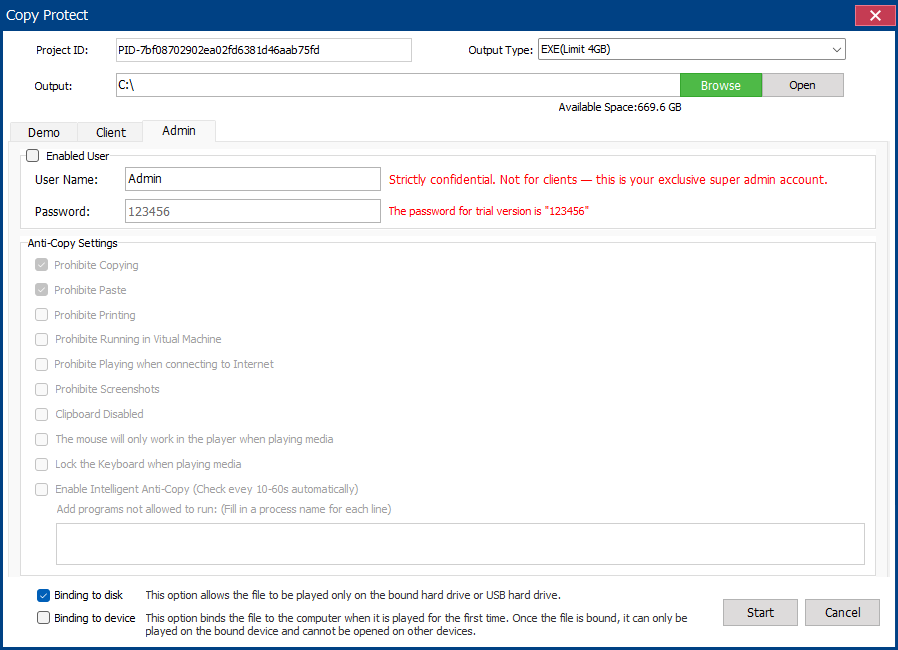
Set up the protected release in four stages
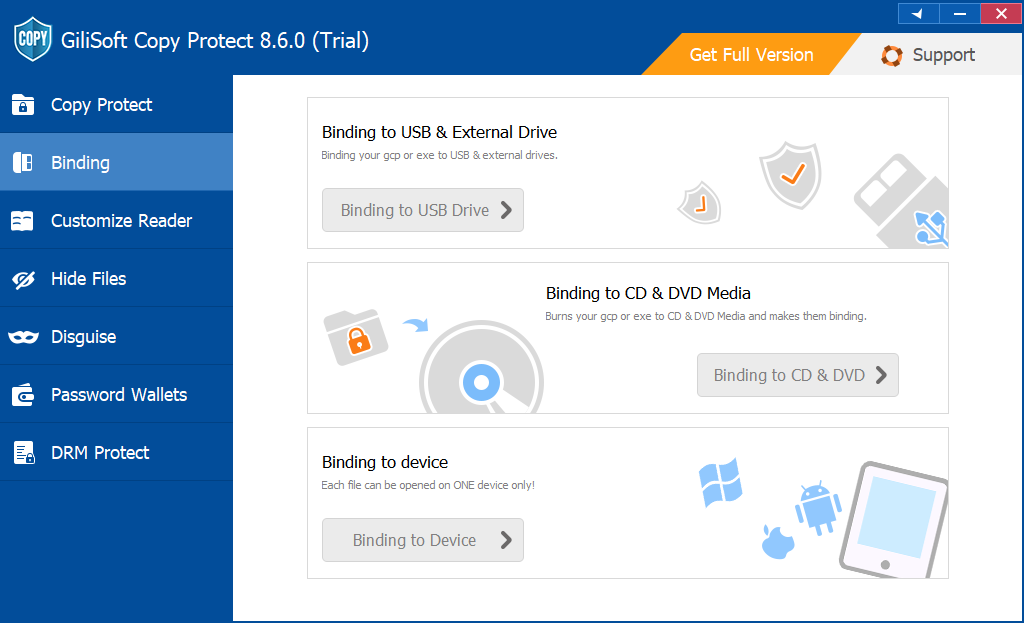
What the learner receives
The learner launches the GCP or EXE package from the USB drive rather than browsing ordinary source videos.
The package applies its password, approved USB or PC binding, expiration date, and viewing limit.
Playback remains available while copy, screenshot, Save As, clipboard, and other actions follow the publisher's settings.
Protect a training-video release before it leaves your organization
Use Copy Protect when learners need an offline Windows package containing videos and related files, but should not receive a normal folder of reusable MP4 sources.
Recommended settings for common training deliveries
When Video DRM Protection is the better choice
Copy Protect is a strong fit when a Windows user needs one controlled offline package containing training videos and supporting files. Choose GiliSoft Video DRM Protection when the video itself is the product and you need recipient or device authorization, dynamic viewer watermarks, expiration, password blacklisting, and the ability to revoke a leaked authorization after delivery.
Video DRM packages are authored on Windows, while protected playback can be prepared for supported desktop and mobile environments. Public handouts and ordinary resources can remain outside the protected video package.
Training-video release checklist
- Export final lessons at the intended resolution and confirm audio synchronization.
- Remove editable project files, unused takes, private notes, and obsolete versions from the release folder.
- Choose GCP for larger libraries; use EXE only when the complete protected output remains within 4 GB.
- Test captions, fonts, links, supporting documents, and any codec requirements on a clean Windows PC.
- Verify password, watermark, expiry, viewing limits, screenshot rules, Save As, copy, and device binding.
- Keep a verified internal master and the Copy Protect project used to rebuild each release.
- Record which learner, customer, site, or department received each protected USB.
Related training video protection guides
USB training video protection FAQ
Can I protect several training videos in one package?
Yes. Add multiple lessons and their supporting files to one organized GCP or EXE release. Split the library into separate packages when audiences, expiry dates, or permissions differ.
Should I use GCP or EXE output?
Use GCP for the standard protected-reader format and larger training libraries. Use EXE for a self-running Windows package only when the complete output remains within the 4 GB EXE limit.
Can the protected videos be bound to one USB drive or PC?
Yes. Device binding can tie the release to approved removable media or a recipient computer, so copying the package and sharing its password is not enough to move access freely.
Does USB encryption provide the same copy controls?
No. USB encryption protects the drive while locked. After the private area is opened, its files behave normally. Copy Protect is intended for controlled use after the recipient opens the training package.
Can software stop every recording method?
No. Client settings can address common software capture and reuse paths, but an external camera can still film visible content. Named watermarks help identify redistributed material.
When should I use Video DRM Protection instead?
Use Video DRM when viewer authorization, dynamic watermarks, expiration, password blacklisting, revocation, and supported desktop/mobile protected playback matter more than one mixed-file Windows package.
Official references
- NIST: Reducing cybersecurity risks from portable storage media
- Microsoft: BitLocker frequently asked questions
Deliver training videos on USB without handing over ordinary MP4 files
Build a controlled offline package, identify the recipient, choose the allowed actions, and test the learner experience before deployment.
View GiliSoft Copy Protect