
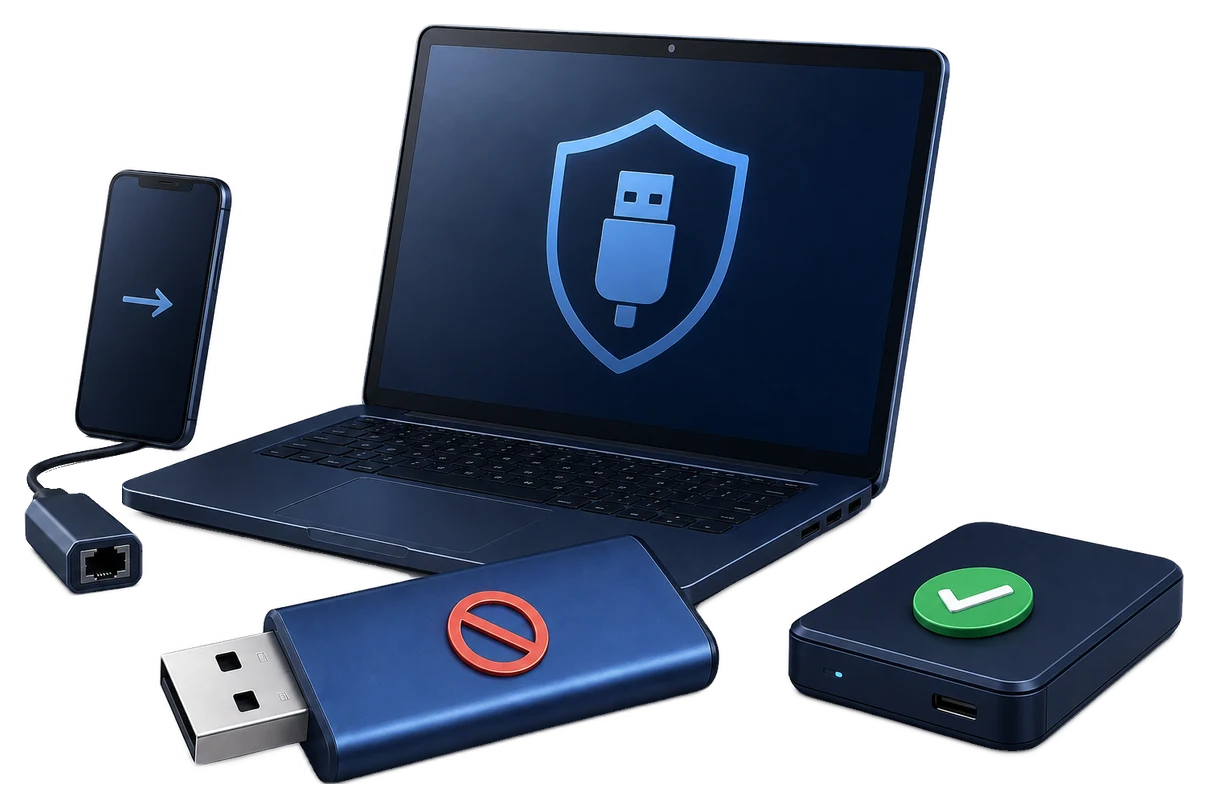
USB Protection for Windows: Choose the Right Method
If you need to protect a USB drive, first decide whether the risk is an unapproved device connecting to a PC, confidential files on a lost drive, or recipients copying files you send. Each problem has a different control and a different GiliSoft product.
Quick answer
Use GiliSoft USB Lock to block or allow USB devices on managed Windows PCs. Use GiliSoft USB Encryption to create password-protected private storage on a flash drive. Use GiliSoft Copy Protect when you need a controlled package for files delivered to other people. None of these three controls replaces a backup.
Compare the Three USB Protection Methods
| Your main risk | Choose | What it controls | What it does not do |
|---|---|---|---|
| Unknown USB drives or adapters on a shared or company PC | USB Lock | Device access, blocking, and approved-device rules on Windows | Encrypt files on a lost flash drive |
| A lost or borrowed flash drive exposes private files | USB Encryption | Password-protected private storage on the drive | Block other USB hardware on a PC or prevent copying after unlock |
| Recipients receive files on USB and may copy or redistribute them | Copy Protect | Protected delivery package and controlled viewing rules | Encrypt the whole drive or guarantee that no external capture occurs |
Choose the Product for Your Workflow
1. Control which USB devices can connect
Choose GiliSoft USB Lock when you administer the Windows PC. You can block unapproved USB storage and selected device classes while keeping trusted company drives or supported USB network adapters available through allow rules. Test the policy with both an approved and an unapproved device before applying it broadly.
Explore USB Lock | Set up an approved-device list | Download Trial
2. Protect the files on a flash drive
Choose GiliSoft USB Encryption when the drive itself may be lost. Back up the files, select the correct device, create a password-protected private area, move sensitive files into it, then close and reconnect the drive to confirm that the private area stays locked. Files left in the public area are not protected by that private-area password.
Explore USB Encryption | Follow the USB encryption guide | Download Trial
3. Control access to delivered files
Choose GiliSoft Copy Protect when recipients need to open content from USB but you want rules around viewing, copying, printing, or device binding. Create a protected package, then test the complete recipient experience on another computer. This is a file-delivery workflow, not a replacement for whole-drive encryption.
Explore Copy Protect | Read the Copy Protect guide | Download Trial
When You Need More Than One Layer
A managed office PC and a traveling USB drive face different risks. Use USB Lock on the office PC to limit unknown devices, and USB Encryption on the drive to protect private files away from that PC. If the same files are later delivered to a recipient who needs controlled viewing, prepare a Copy Protect package separately.
Test Before Relying on USB Protection
- Use a spare device and noncritical files
Confirm the intended PC, flash drive, account, and file types before changing policies or creating protected storage.
- Check the allowed path
Verify that approved hardware connects, the encrypted area opens with its password, or the recipient can open the protected package.
- Check the blocked path
Try an unapproved USB device, reconnect the locked drive, or test a recipient action that the package should restrict.
- Plan recovery and backup
Keep a separate backup and store passwords or recovery information away from the USB drive.
Frequently Asked Questions
Is USB device control the same as USB encryption?
No. USB Lock controls which devices can connect to a managed Windows PC. USB Encryption protects files stored in the private area of a flash drive.
Will USB Lock protect files if the flash drive is lost?
No. A device policy on one PC does not encrypt files on the drive. Use USB Encryption for password-protected private storage and keep a separate backup.
Is USB encryption the same as copy protection?
No. Encryption protects stored files until they are opened with the password. Copy Protect packages delivered content for controlled viewing and reuse after delivery.
Can copy protection stop every screenshot or recording?
No. It can restrict common copying actions, but no software can guarantee that a viewer with access will never capture the output.
What should I test before using USB protection?
Test the actual Windows PC, USB device, recipient computer, password, recovery method, file types, and full open-and-close workflow with noncritical data.