
Choose Direct Copies or a Saved Disc Image
Quick answer: For a small batch made now, prepare and test one project, then use the copy-count workflow. For recurring production or transfer to another workstation, create a supported disc image after the layout is finalized. In both cases, test the master before consuming the rest of the blank media.
| Playback or workflow | Recommended output | Important check |
|---|---|---|
| Two or three discs now | Multiple-copy burn | Fastest after the master passes |
| Recurring monthly/class set | Saved image plus later burn | Preserves the prepared layout |
| Different playlists | Separate named projects/images | Prevents mixing versions |
| Unknown playback hardware | One test disc first | Confirms media and format compatibility |
Before You Start
A successful burn begins with the destination player, compatible blank media, and a reviewed source list. Decide those details before the optical drive starts writing.
Freeze the content
Approve the track list, order, trims, and disc type before making copies.
Stage enough media
Use consistent, compatible blank discs from the same known-good supply.
Plan identification
Assign a batch name, revision, disc number, and creation date.
How to Burn Multiple Audio CDs Consistently: Step by Step
Finalize one source project
Confirm disc type, track order, source versions, edits, and total capacity before starting the batch.
Burn a single master
Write one disc using the intended media and settings rather than starting the complete quantity immediately.
Test the master on target hardware
Check recognition, first/middle/final tracks, navigation, and the ending before approval.
Set the required copy count
Use GiliSoft MP3 CD Maker multiple-copy controls and keep the tested source project unchanged.
Inspect each completed disc
Check for write errors, obvious surface problems, correct labeling, and at least a quick recognition test.
Preserve the production source
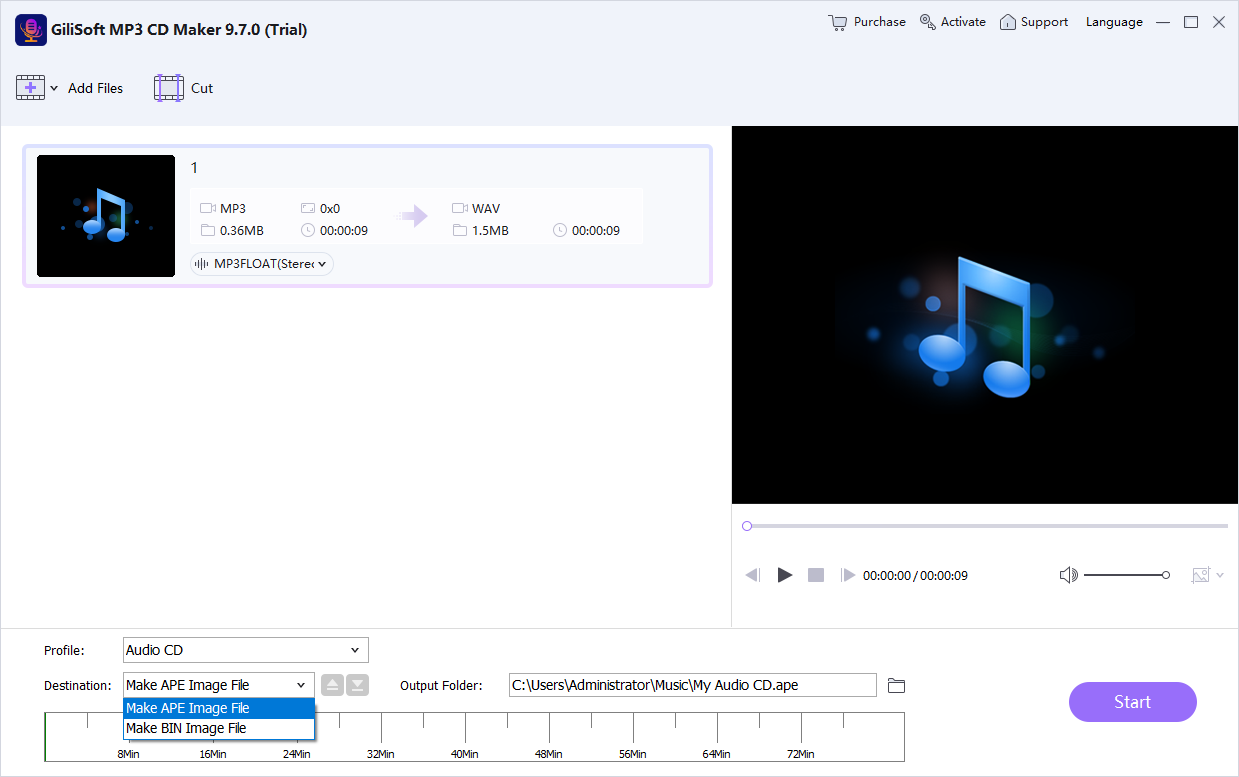
Keep a supported image or project record with the source manifest and settings for later authorized copies.
Improve Disc Reliability and Playback Compatibility
Test before multiplying
A one-disc compatibility error is inexpensive; the same error across a full batch is not.
Keep media consistent
Changing disc type or brand during production can introduce new compatibility variables.
Track the revision
Put a clear version and date on the project record so an old playlist is not reproduced.
Spot-check the batch
At minimum confirm disc recognition; use fuller sampling when delivery risk is higher.
Recommended Windows Tool: GiliSoft MP3 CD Maker
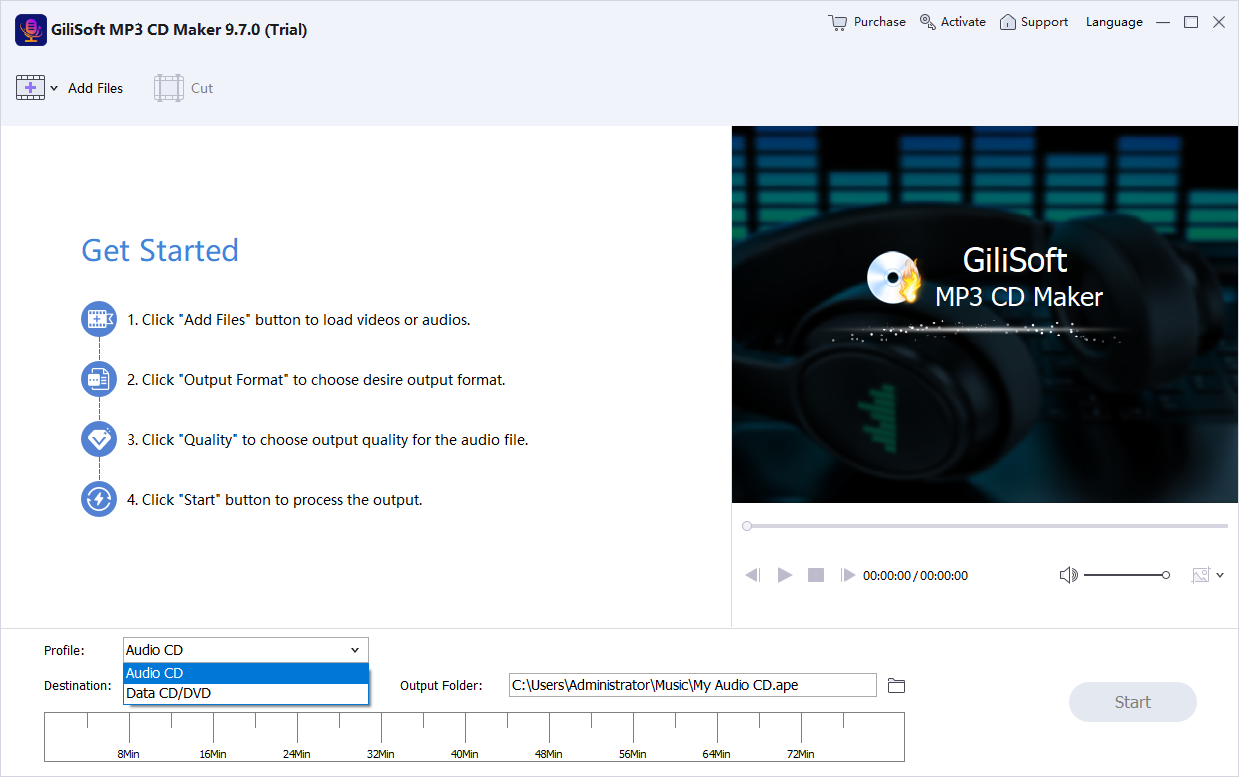
GiliSoft MP3 CD Maker combines an editable music-disc project, copy-count support, rewritable-disc handling, and supported image output. That makes it suitable for small repeat batches after one master has been approved.
- Create standard Audio CDs or MP3/WMA music discs from the appropriate mode.
- Import common audio formats and selected video sources when their soundtrack is needed.
- Arrange, remove, trim, mix, or preview material before committing it to disc.
- Test a finished disc before making copies or distributing authorized content.
Troubleshoot Common CD Burning Problems
| Problem | Likely cause | What to do |
|---|---|---|
| First copy works, later copy fails | Media variation or burner condition | Inspect the failed disc, retry with known-good media, and reduce burn stress |
| Wrong playlist was duplicated | Project revision was not identified | Name and date the approved source before burning the batch |
| Batch plays on PC only | Master was not tested on destination hardware | Stop production and validate the correct disc mode on the real player |
| Labels do not match content | Discs were labeled before verification | Test and identify each disc immediately after completion |
Burn Only Music You Are Authorized to Copy
Use your own recordings, public-domain material, or music for which you have suitable copying and distribution permission. Purchasing access or being able to play a stream does not necessarily grant the right to duplicate it, and technical protection should not be bypassed.
Frequently Asked Questions
Can I burn several copies without rebuilding the playlist?
Yes. Finalize and test the source project, then use the available multiple-copy workflow. Keep the project unchanged while producing the approved batch.
Should I test every copy?
The required level depends on risk and quantity. Test the master fully, inspect every completed disc, and spot-check playback across the batch.
Is a disc image better for repeated batches?
It can be useful when the same approved layout must be stored, transferred, or burned again later. Confirm the selected image format works with the later burn workflow.
Should I use CD-R or CD-RW?
CD-R is generally the safer choice for older car and home players. CD-RW is reusable, but many older devices do not support it reliably. Check the destination player manual.
What should I test after burning?
Test the first, middle, and final tracks on the actual destination player. Also confirm track order, navigation, silence between tracks, and that the disc starts after reinsertion.
Can I burn downloaded or streaming music to CD?
Only burn music you own or are authorized to copy. A playable source does not automatically grant duplication or distribution rights, and protected streams should not be bypassed.
More Audio CD and Music Disc Guides
Continue with the disc format, production method, or complete product guide that matches the next task.