
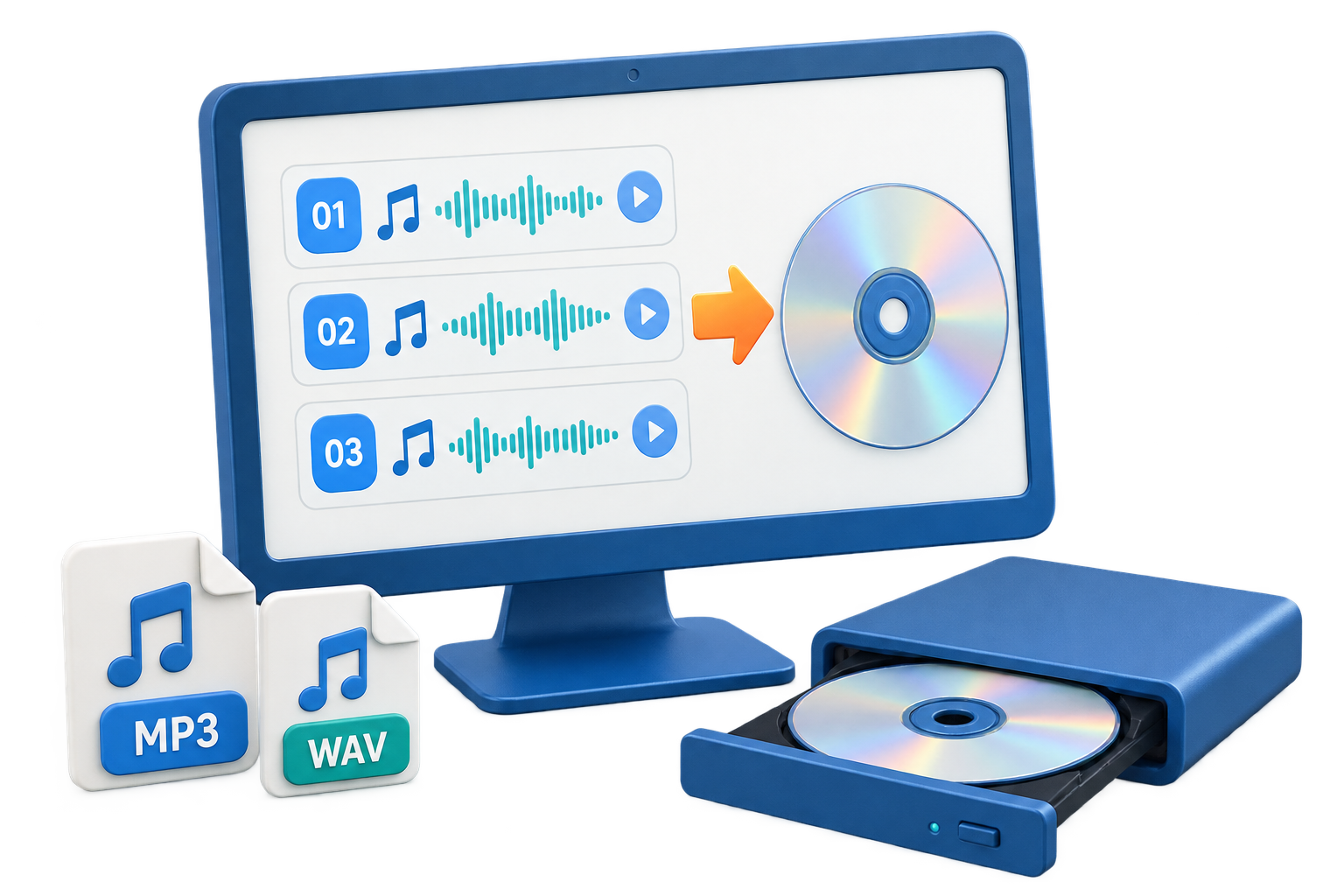
Choose the Music Disc Format Before Building the Playlist
Quick answer: Use a standard Audio CD for older car and home players. Use MP3 CD when you need more songs and the player explicitly supports compressed files from disc. Use a data disc or image when the goal is storage or later production rather than traditional CD playback.
| Playback or workflow | Recommended output | Important check |
|---|---|---|
| Older car stereo | Audio CD on CD-R | Plan by total playing time |
| MP3-capable stereo | MP3 CD | Plan by file capacity and device limits |
| Computer playback or archive | Data disc | Files remain in their source formats |
| Repeated event or class set | Test master plus copies/image | Verify before producing the set |
Before You Start
A successful burn begins with the destination player, compatible blank media, and a reviewed source list. Decide those details before the optical drive starts writing.
Choose authorized music
Confirm ownership or permission before copying or distributing tracks.
Build the listening order
Sequence openings, transitions, lessons, or sets before writing.
Normalize expectations
Preview volume changes and trim silence; do not assume every album has equal loudness.
How to Burn Music to CD on Windows: Step by Step
Identify where the CD will play
Check whether the target device needs Audio CD or supports MP3/WMA data discs.
Gather and review the music
Use owned or authorized files, remove duplicates, and listen for corrupt or incomplete tracks.
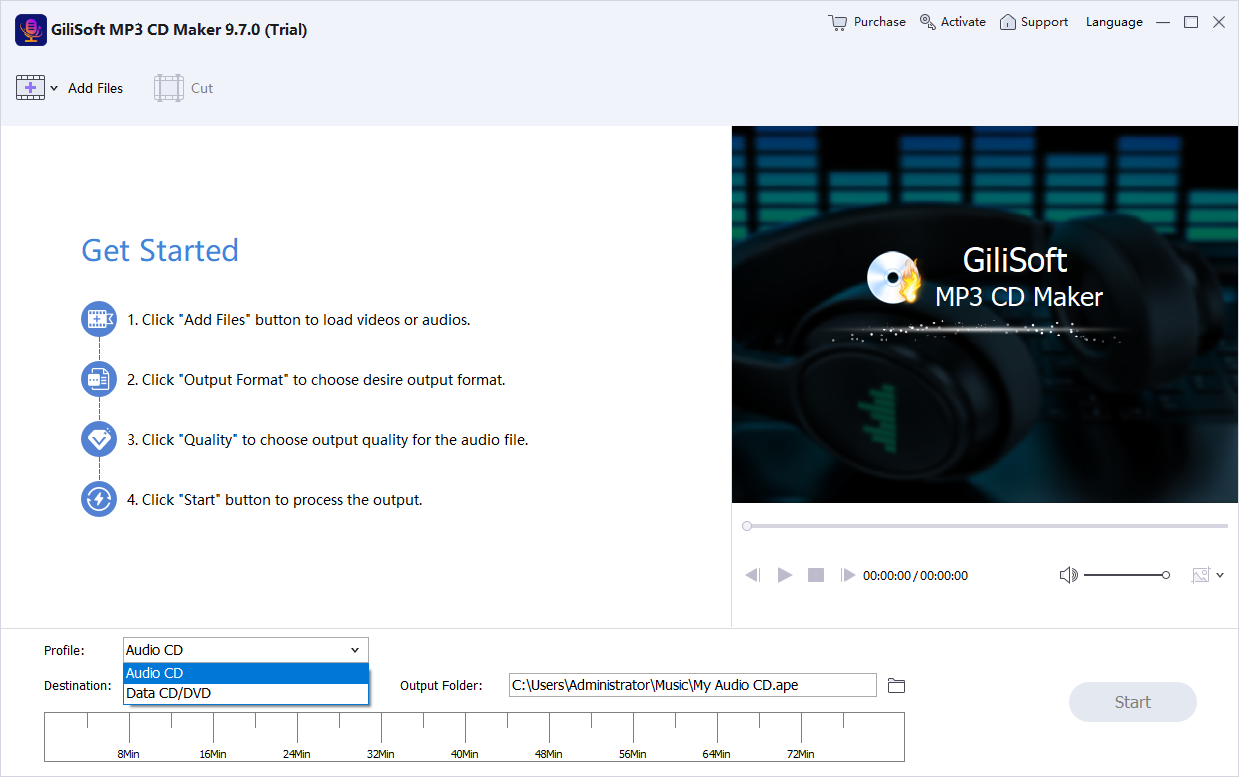
Choose the disc mode
Select Audio CD for compatibility or MP3/WMA output for supported players and greater capacity.
Arrange and prepare the playlist
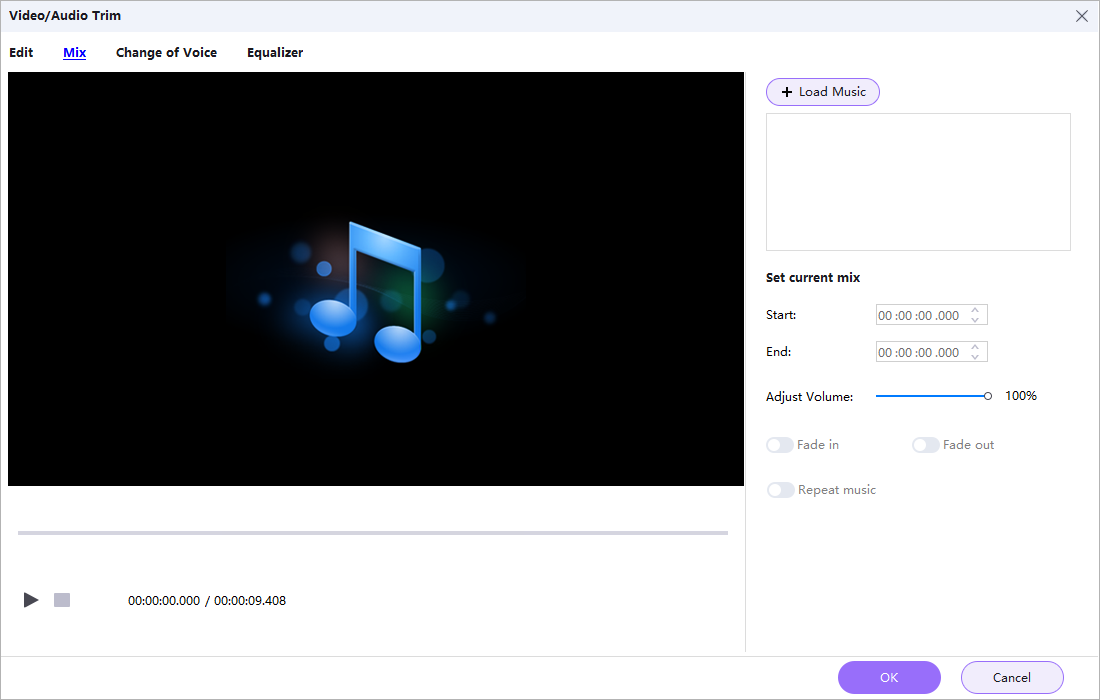
Set final order, trim unwanted sections, and preview changes before burning.
Burn to the selected media
Choose the correct recorder, confirm capacity, and keep Windows stable while the disc is written.
Label only after testing
Reinsert the disc and test several tracks on the intended player before applying a permanent label.
Improve Disc Reliability and Playback Compatibility
Open with a reliable first track
The first track quickly reveals whether the player recognizes the disc and disc mode.
Check transitions and silence
Listen around track boundaries when timing matters for lessons, events, or continuous programs.
Keep a source manifest
Retain the filenames and order used so the same playlist can be rebuilt later.
Test before distribution
One verified disc prevents repeating the same compatibility mistake across a batch.
Recommended Windows Tool: GiliSoft MP3 CD Maker
GiliSoft MP3 CD Maker is recommended when Windows users need to choose between Audio CD, MP3/WMA disc, or data output and also want track ordering, trimming, mixing, multiple copies, and image creation available in the same workflow.
- Create standard Audio CDs or MP3/WMA music discs from the appropriate mode.
- Import common audio formats and selected video sources when their soundtrack is needed.
- Arrange, remove, trim, mix, or preview material before committing it to disc.
- Test a finished disc before making copies or distributing authorized content.
Troubleshoot Common CD Burning Problems
| Problem | Likely cause | What to do |
|---|---|---|
| Music files cannot be added | Source is damaged or unsupported | Play the source first and convert it to a supported format if necessary |
| Playlist exceeds the disc | Too much Audio CD playing time or data capacity | Remove tracks or split the playlist across discs |
| Volume changes between songs | Sources were mastered at different levels | Review and adjust sources before burning; test transitions |
| Player rejects the disc | Disc type or media is incompatible | Try standard Audio CD on CD-R and consult the player manual |
Burn Only Music You Are Authorized to Copy
Use your own recordings, public-domain material, or music for which you have suitable copying and distribution permission. Purchasing access or being able to play a stream does not necessarily grant the right to duplicate it, and technical protection should not be bypassed.
Frequently Asked Questions
Is an Audio CD the same as an MP3 CD?
No. A standard Audio CD stores CD audio for broad player compatibility and is normally limited by playing time. An MP3 CD stores compressed files as data and works only in players that support MP3 discs.
Should I use CD-R or CD-RW?
CD-R is generally the safer choice for older car and home players. CD-RW is reusable, but many older devices do not support it reliably. Check the destination player manual.
Why does the disc play on my PC but not in the car?
The car player may not support the selected disc type, file format, recordable media, folder structure, or an unclosed session. Test a standard Audio CD on CD-R when broad compatibility is the priority.
What should I test after burning?
Test the first, middle, and final tracks on the actual destination player. Also confirm track order, navigation, silence between tracks, and that the disc starts after reinsertion.
Can I burn downloaded or streaming music to CD?
Only burn music you own or are authorized to copy. A playable source does not automatically grant duplication or distribution rights, and protected streams should not be bypassed.
Can GiliSoft MP3 CD Maker use audio from a video file?
Yes. The product supports selected video sources when their soundtrack is needed, alongside common audio formats. Review the extracted track before burning.
More Audio CD and Music Disc Guides
Continue with the disc format, production method, or complete product guide that matches the next task.