
Plan the APE-to-MP3 Output Structure
Quick answer: Use MP3 for wider device support and smaller files, but keep the APE source because MP3 is lossy. If an album is stored as one large APE file with a separate cue sheet, first confirm how the tracks should be split and named; do not assume conversion alone creates individual tracks.
| Source situation | Recommended action | Why |
|---|---|---|
| Separate APE track files | Batch-convert to matching MP3 files | Simple one-to-one organization |
| One album-length APE file | Decide whether to keep one file or split first | Conversion does not define track boundaries by itself |
| APE plus cue sheet | Preserve both source files | The cue may contain track timing and titles |
| Archive and portable listening | Keep APE plus MP3 copies | Separates preservation from delivery |
Organize APE Albums Before Conversion
Lossless archives often depend on filenames, folders, cue sheets, and tags for album structure. Preserve those source relationships before creating MP3 derivatives.
Keep source folders intact
Do not move or rename cue sheets and image files until the archive is backed up.
Check track boundaries
Determine whether each APE is a track or one file represents a complete album.
Choose consistent names
Use disc and track numbers when creating separate MP3 files.
Verify tags
Review artist, album, title, year, genre, and track order after conversion.
Convert APE to MP3 in 6 Steps
Back up the APE archive
Keep APE files, cue sheets, artwork, and existing metadata together.
Decide the track layout
Confirm whether the source contains separate tracks or a single album-length file.
Add the APE files
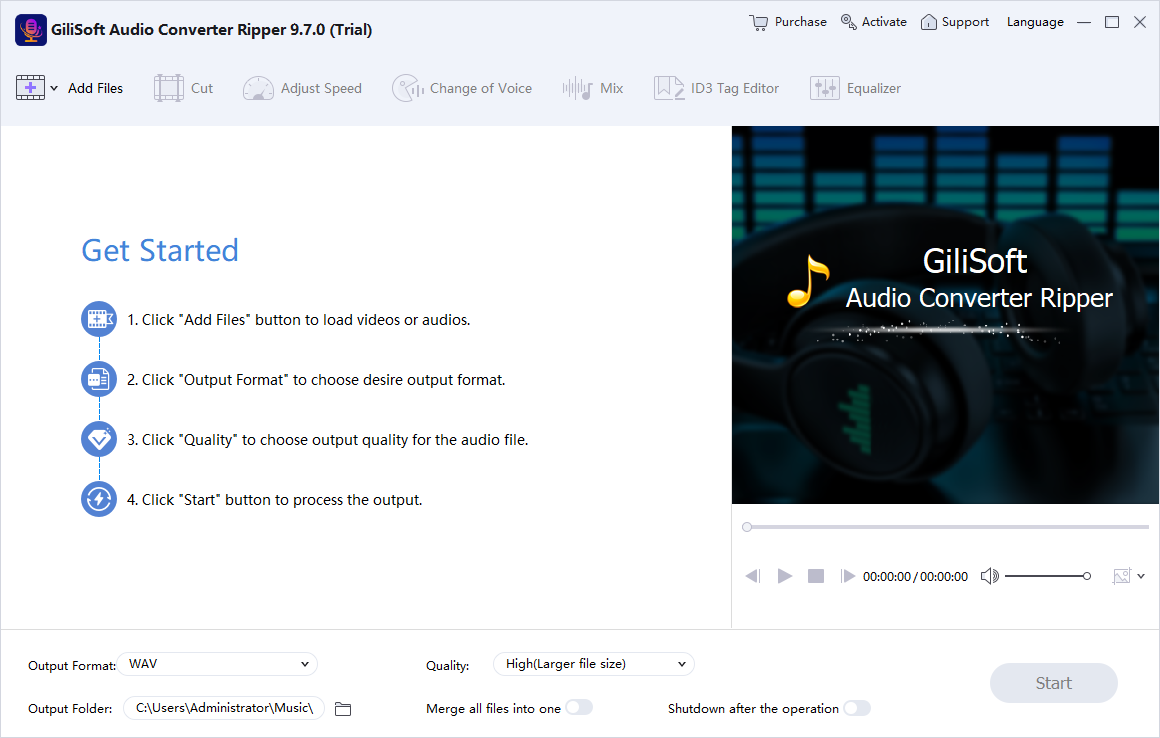
Open Audio Converter Ripper and add the files that should become MP3.
Choose MP3 settings
Select an output quality, destination folder, and filename plan for the intended player.
Convert a representative file
Test playback, duration, audible quality, and metadata before a full batch.
Complete and audit the batch
Check file count, track order, titles, artist, album, duration, and the first and last seconds.
Preserve What MP3 Cannot Restore
APE source
APE is used for lossless compression and should remain the archive when possible.
MP3 derivative
MP3 trades some audio information for smaller files and broad compatibility.
Track structure
Cue timing and album layout are organizational data, not automatically recovered from one long file.
Metadata review
Converted tracks should be checked in a second player, not only in the converter.
Important: Never use an MP3 derivative as the only replacement for a verified APE archive. Keep cue sheets and album organization with the lossless source.
Batch-Convert APE Files with GiliSoft
GiliSoft Audio Converter Ripper supports APE alongside FLAC, WAV, MP3, AAC, M4A, OGG, WMA, CD audio, and audio extracted from video. Batch processing and ID3 editing help prepare portable collections after conversion.
- Test whether the intended player supports the chosen MP3 settings.
- Keep cue sheets and artwork in the source archive even when the MP3 folder uses different organization.
- Compare the number and duration of output files with the planned track list.
Troubleshoot Common Audio Workflow Problems
- One album becomes one MP3: The source is likely one long APE file; define or perform track splitting separately.
- Tracks appear in the wrong order: Add consistent disc and track numbers to filenames and ID3 tags.
- A file will not open: Verify the APE file plays and is not incomplete or damaged.
- The MP3 sounds worse than expected: Increase output quality and reconvert from the original APE.
- Tags are missing: Use the ID3 editor and compare against the source album information.
- The cue sheet no longer matches: Preserve it with the APE source; an MP3 folder may need its own track structure.
Keep the Lossless Album Archive
Maintain the original APE files and associated cue sheets when they form the archival copy. Convert only music you are entitled to process and share.
Frequently Asked Questions
What is an APE file?
APE is commonly associated with Monkey’s Audio lossless compression and is often used for music archives.
Why convert APE to MP3?
MP3 is usually easier to play on phones, cars, hardware players, websites, and other systems.
Does APE to MP3 remain lossless?
No. MP3 is a lossy output, so the APE source should be retained.
Can a cue sheet split one APE album automatically?
A cue sheet can describe track boundaries, but support and workflow vary. Confirm track splitting instead of assuming conversion alone performs it.
Can I batch-convert separate APE tracks?
Yes. Add multiple APE files, choose MP3 settings and a destination, then verify the complete batch.
How do I keep album order?
Use consistent folder names, disc and track numbers, filenames, and ID3 tags.